







Status Tracking-Zendesk Integration

Setting up Zendesk integration for the Status Tracking plugin is pretty straightforward, but will involves a few key steps. First ensure you have Ultimate Status Tracking installed and activated.


Install Ultimate Status Tracking – WordPress Plugin

6,000+ Installations


Next, follow the instructions below to set up your Status Tracking-Zendesk Integration.
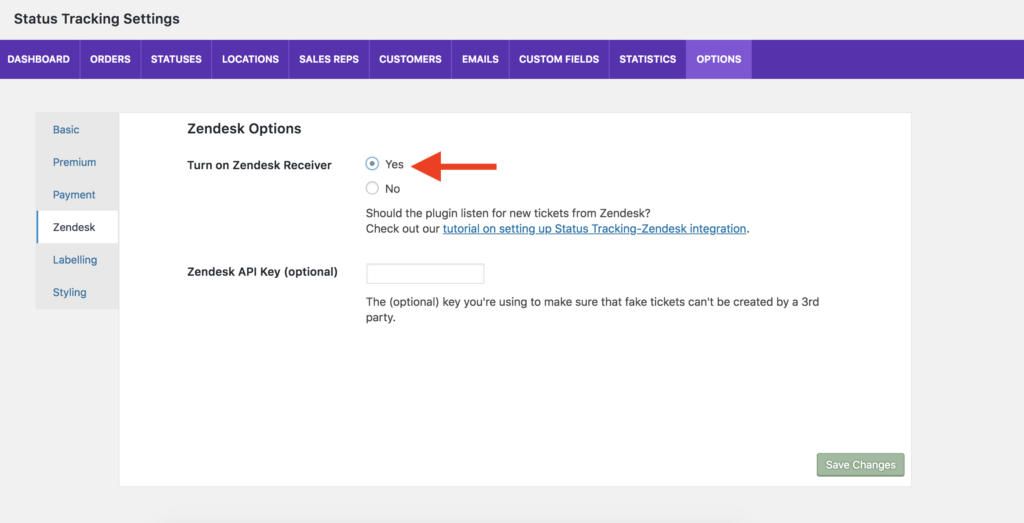
Step 1:Set “Turn on Zendesk Receiver” to “Yes” in the “Zendesk” area of the “Options” tab.
Zendesk2
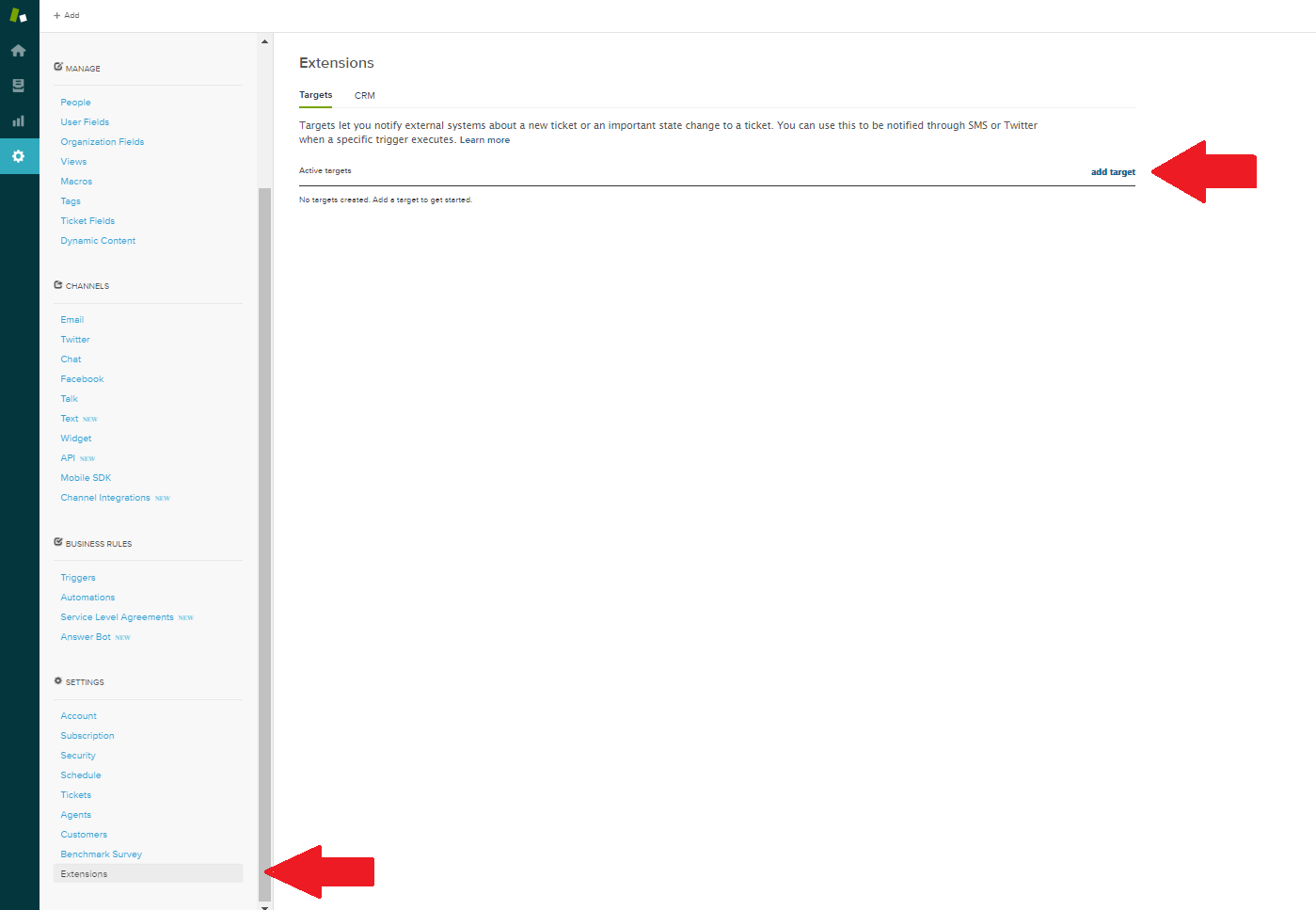
Step 2: In the Zendesk “Admin” settings area, click on the “Extensions” menu item and then click the “add target” link.

Step 3: Select the “HTTP target” option from the list of available options. Enter a title (ex. Status Tracking ticket created), leave the method as “GET” and the “Basic Authentication” box unchecked. Next, for the URL enter the following:http://example.com?Action=Zendesk_Order_CreatedBe sure to replace example.com with the URL of your website. Next, change the dropdown box from “Test Target” to “Create Target” and click the “Submit” button.
Step 4: Go back to the “Extensions” menu item and then click the “add target” link again. Select the “HTTP target” option from the list of available options. Enter a title (ex. Status Tracking ticket updated), leave the method as “GET” and the “Basic Authentication” box unchecked. Next, for the URL enter the following:http://example.com?Action=Zendesk_Order_UpdatedBe sure to replace example.com with the URL of your website. Next, change the dropdown box from “Test Target” to “Create Target” and click the “Submit” button.
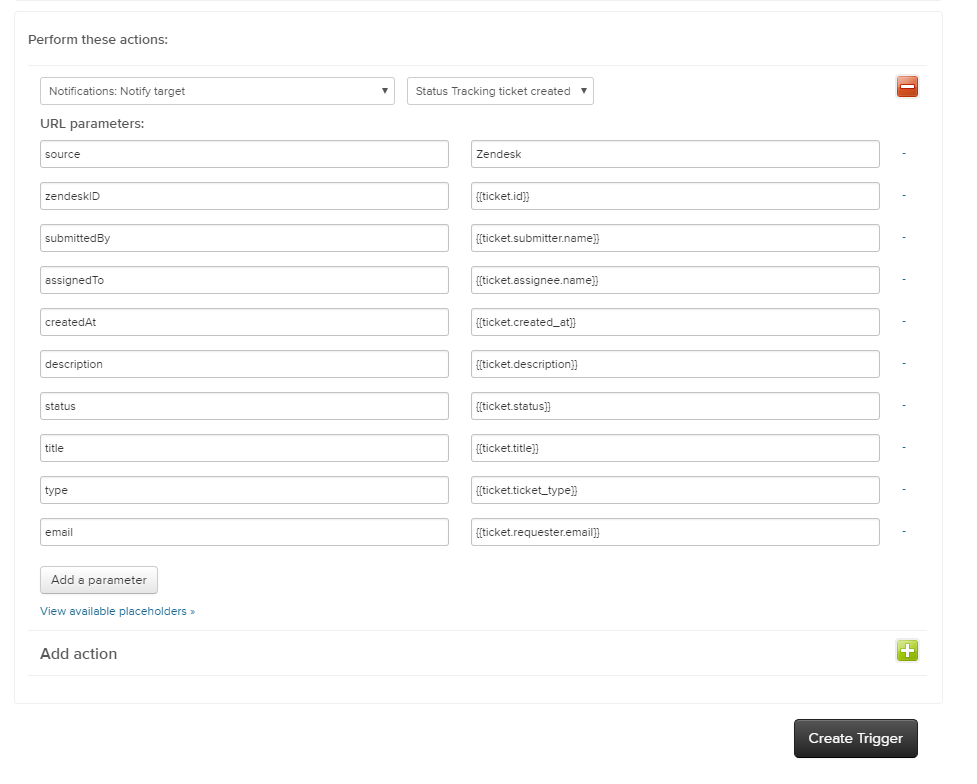
Zendesk3
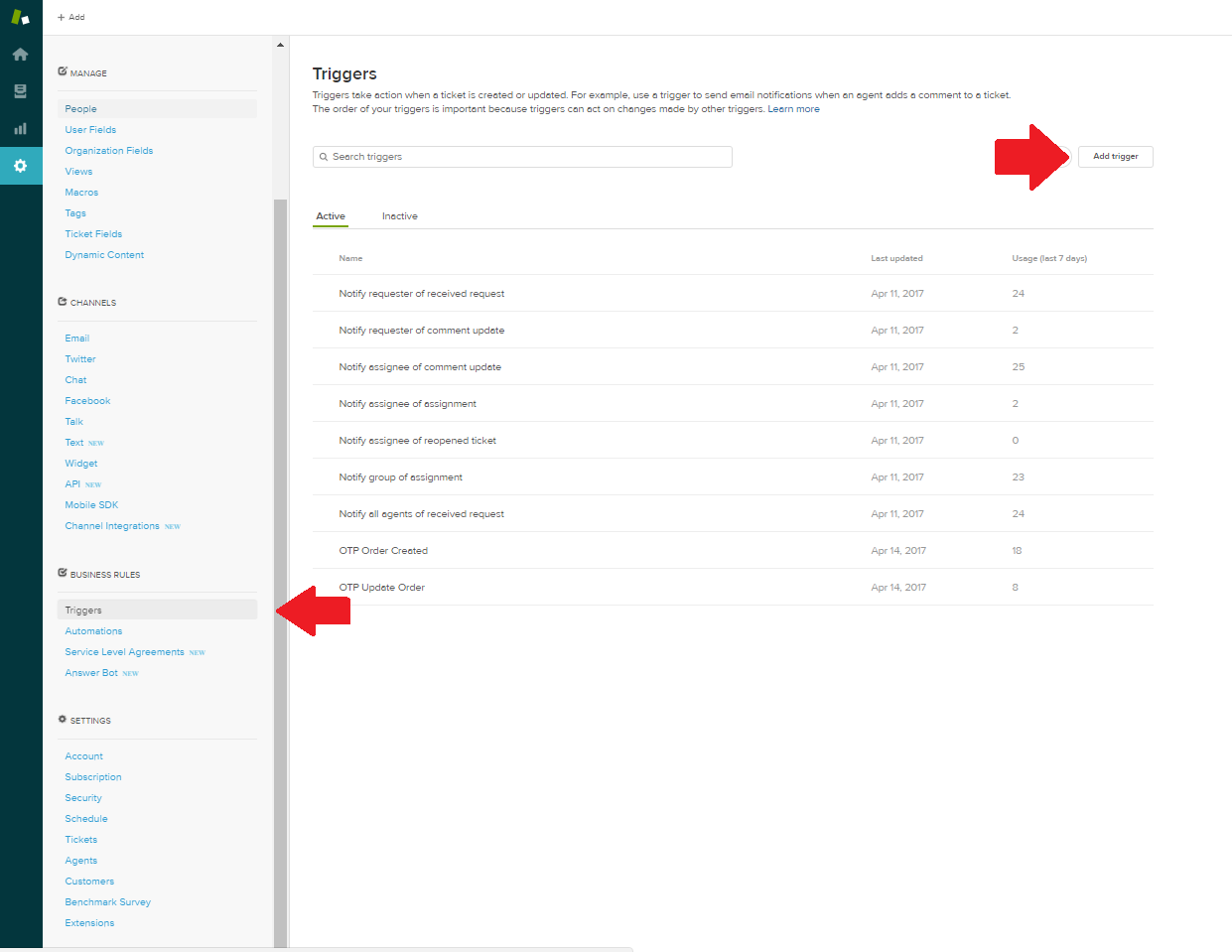
Step 5: Next, click on the “Triggers” menu item, and then click the “Add trigger” button.
Zendesk4
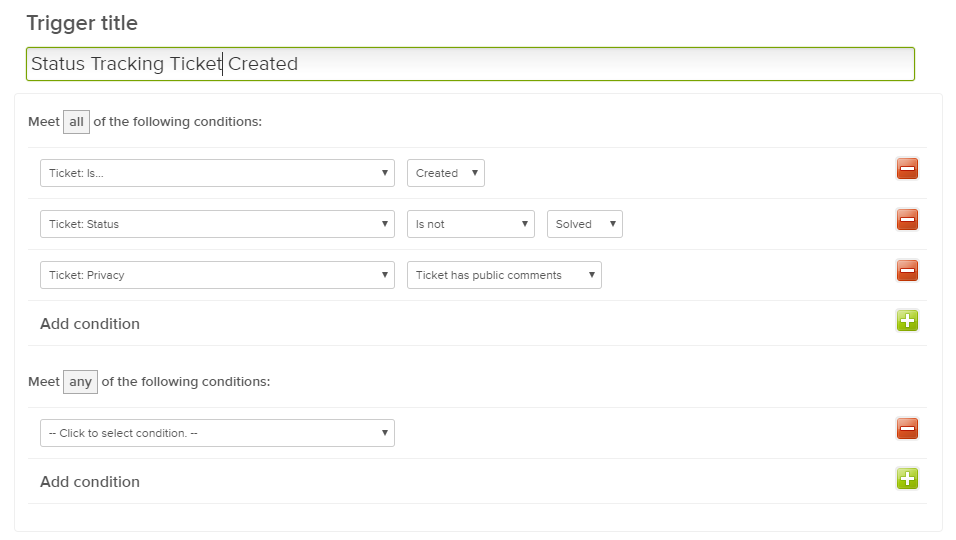
Step 6: Create a trigger that fires when a ticket is created, using these settings.
Zendesk5
Step 6 Cont.
Zendesk6
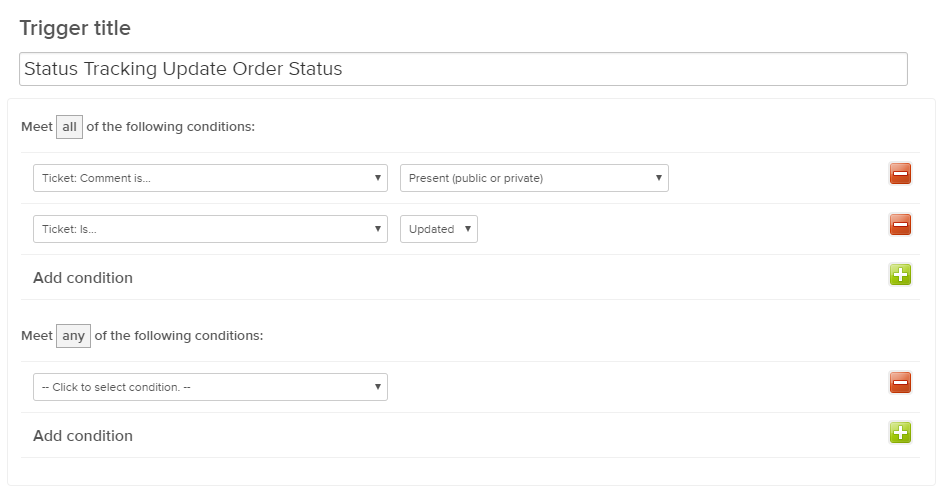
Step 7: Create another trigger that will fire when a ticket is updated, with these settings.
Zendesk5
Step 7 Cont.

That’s it!

There should now be an order created each time a ticket is submitted to you via Zendesk, and the status of that ticket should automatically update on your website tracking form each time you update the status of the ticket via Zendesk.

Call to action box goes here
Need a Plugin to Improve Your Site?
Browse Plugins Now
How to Quickly Optimize the Alt Text of the Images on Your Site Using AI Image Alt Text

Alt text plays an important role in both accessibility and search engine optimization. Search engines use image alt attributes to understand what an image represents, while screen readers rely on them to describe visuals to users. Manually writing descriptive alt text for every image can be time-consuming, especially if your site includes large product catalogs,…

New Plugin Launch: AI Admin Assistance for WordPress

We’re excited to share the latest release from our sister brand, WP AI Power Tools: AI Admin Assistance, a WordPress plugin that adds a smart, slide-in help panel and AI assistant to any or every screen in your wp-admin. Whether you’re managing your own site or building for clients, this plugin lets you embed guidance,…

How to Use WPML with Ultimate FAQ

If you are building a multilingual WordPress site and using Ultimate FAQ, you may want to translate your FAQs, categories, tags, and custom fields so visitors can browse in their preferred language. Ultimate FAQ is fully compatible with translation plugins such as WPML. Because FAQs, categories, and tags are created as custom post types and…

Discover More Posts
Browse Plugins Now