








Blog
How to Set Up and Maximize SMS Notifications in Order Tracking
Read Post →
How to integrate Ultimate FAQ with WP Forms
If you’re using the premium version of Ultimate FAQ, you can integrate your FAQs directly into forms created with WPForms. This allows relevant FAQs to automatically display as a user types into a form field — helping reduce unnecessary submissions and support requests.
This post walks through the exact configuration process.
Step 1: Enable WPForms Integration in Ultimate FAQ
First, enable the integration at the Ultimate FAQ plugin level.
In your WordPress admin:
Go to Ultimate FAQ → Settings → Premium
Locate the WP Forms Integration option and enable it.
Once enabled, additional configuration options will appear:
- Number of FAQs to display
- Whether FAQs should appear above or below the form
- Minimum number of characters required before searching for relevant FAQs
Set your preferred values and save the settings.
At this stage, the integration is enabled globally, but it still needs to be activated for each individual form.
Step 2: Enable FAQs in a Specific WPForms Form
Next, configure the form itself.
Go to WPForms → All Forms and open the form you want to edit.
Inside the form builder, click on:
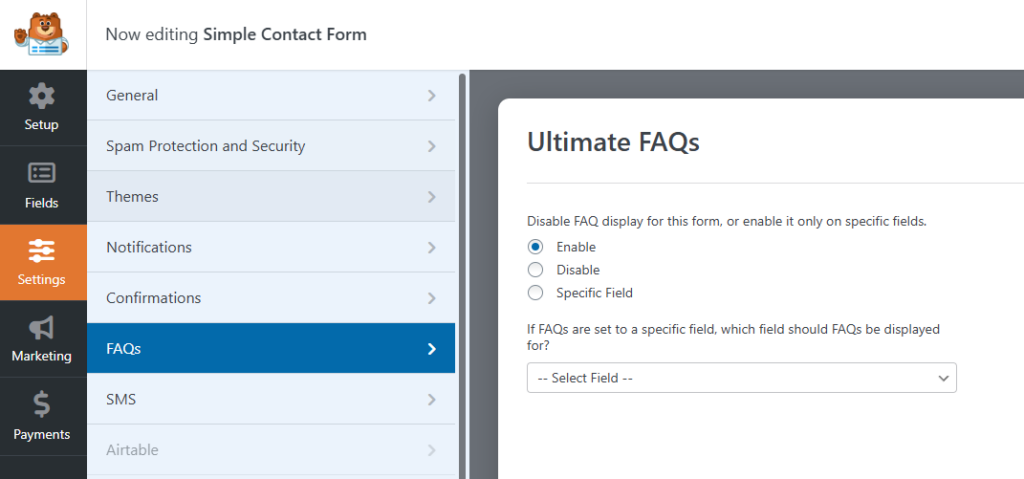
Settings → FAQs panel
Enable FAQs for this form, or enable it only on specific fields.
Default Behavior (Main Message Field)
If you simply enable the feature without changing anything else, the FAQs will automatically attach to the main message field (the textarea).
When a user starts typing in that field:
- The plugin performs a live search of your FAQ content
- Relevant FAQs are matched dynamically
- Matching FAQs are displayed automatically within the form
No additional configuration is required for this default behavior.
Specific Field Option
If you prefer to attach FAQ searching to a different field:
Select Specific Field and choose the desired field from the dropdown.
This allows you to connect the FAQ search functionality to:
- A custom textarea
- A specific question field
- Any supported input field within the form
After selecting the appropriate field, save the form.
How It Works on the Front End
Once configured, the integration works automatically.
As a user types into the selected field:
- Input is monitored in real time
- The plugin queries your Ultimate FAQ database
- Relevant FAQs are displayed instantly
This creates a proactive support experience. Instead of submitting a question that already exists in your FAQ section, users may find their answer immediately.
Use Cases
This feature is especially effective for:
- Support contact forms
- Technical issue reporting forms
- Pre-sales inquiry forms
- Account or membership question forms
If your support inbox frequently receives repetitive questions, this integration helps reduce that volume by surfacing answers before submission.
Final Thoughts
The WPForms integration in the premium version of Ultimate FAQ is a structured, real-time FAQ display system designed to reduce support workload and improve user experience.
Configuration requires:
- Enabling WP Forms Integration in the Premium settings
- Activating FAQs within each WPForms form
- Selecting either the default message field or a specific field
Once set up, relevant FAQs will automatically appear as users type — helping them find answers faster and keeping your support queue lighter.




Discover all of our WordPress plugins
Browse Plugins