









Blog
How to Set Up and Maximize SMS Notifications in Order Tracking
Read Post →
How to Optimize the Speed of Your Product Catalog
A fast-loading product catalog improves both user experience and search engine performance. If you run a site with the Ultimate Product Catalog plugin, there are several ways to ensure your catalog loads efficiently, including plugin settings, environment updates, and standard optimizations.
1. Adjust Plugin Settings
The Ultimate Product Catalog includes options that directly impact performance. Configuring these settings can reduce unnecessary processing and speed up your catalog:
Basic Settings
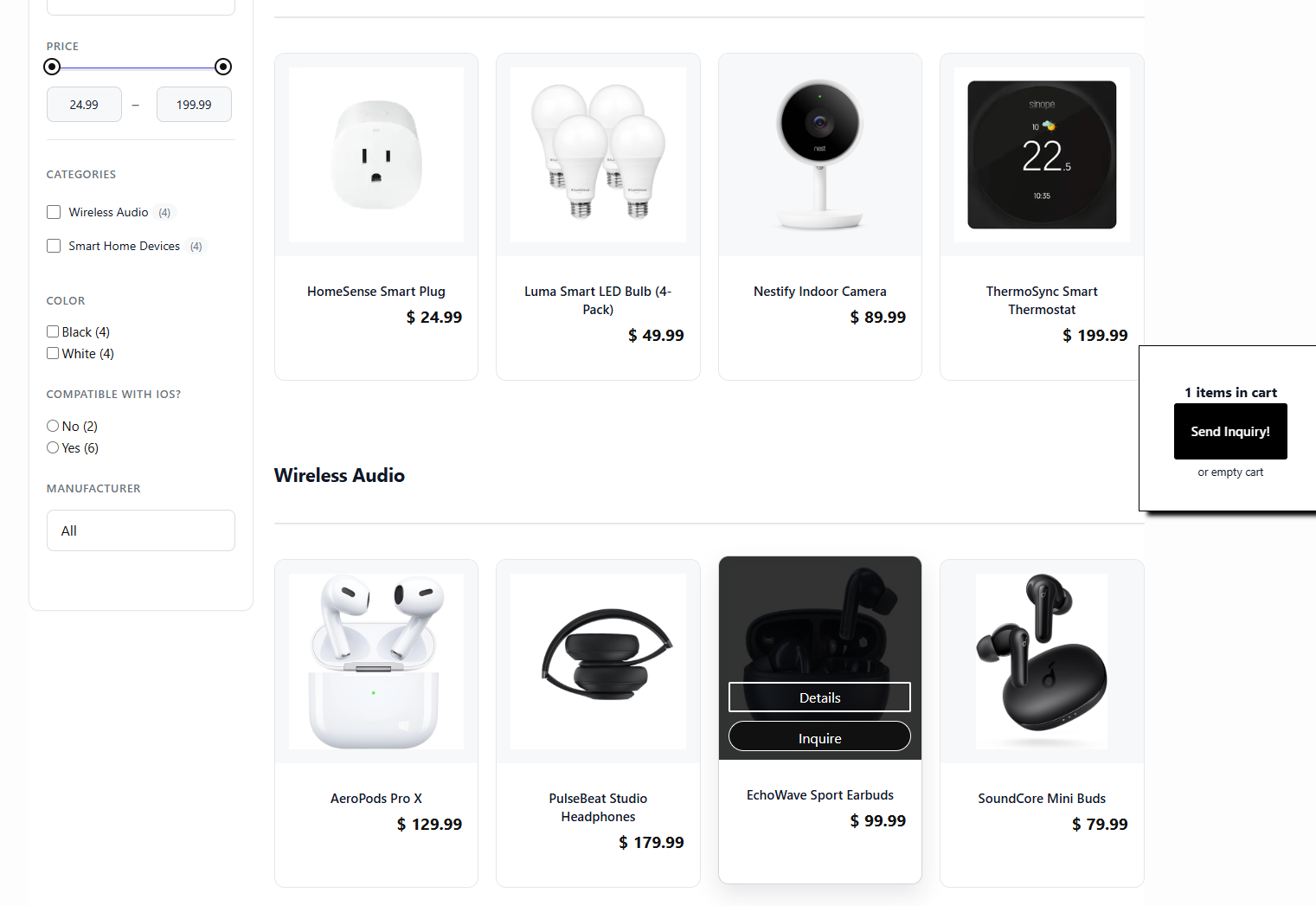
- Disable Price Filtering and Disable Slider Filter Text Inputs – Hide filters that you don’t use, such as price filtering or slider inputs, to reduce the resources needed for rendering and searching.
- Product Search – Limit searches on product data if not necessary. Depending on the number of products you have, searching across their names, descriptions, and custom fields (Premium) slows down the catalog queries.
- Thumbnail Support – Enable thumbnail images on catalog pages to reduce image load times while maintaining a good visual presentation.
Premium Settings
- Products per Page – Control the number of products displayed per page. Reducing this number can drastically improve load times for large catalogs.
- Custom Field Optimization – Disable the “searchable” option for custom fields that don’t need filtering. This reduces database query complexity.
2. Keep Your Site Environment Updated
- Update to the latest WordPress version
- Use the latest compatible PHP version
- Keep the Ultimate Product Catalog plugin itself up to date
These updates ensure you benefit from performance improvements, security fixes, and compatibility optimizations.
3. Standard Optimizations
Even with the plugin settings optimized, traditional website performance best practices are important:
- Caching – Use WordPress caching plugins or server-level caching to store static versions of catalog pages.
- Image Optimization – Compress images and consider modern formats.
- Lightweight Themes and Minimal Plugins – Reduce scripts and remove unnecessary plugins that could slow down catalog pages.
Final Tips
Regularly monitor your catalog performance using tools like Google PageSpeed Insights. Adjusting plugin settings, updating your site environment, and implementing standard optimization practices will keep your Ultimate Product Catalog fast and responsive, even with a large number of products.
If you haven’t explored the Ultimate Product Catalog plugin yet, you can start with the free version to see how it works for your catalog. For larger catalogs and additional speed-oriented settings, the plugin’s Premium version offers advanced features designed to maximize performance.




Discover all of our WordPress plugins
Browse Plugins