









Blog
How to Set Up and Maximize SMS Notifications in Order Tracking
Read Post →
Custom Fields for WordPress Orders
In this blog post about our Order Tracking WordPress plugin, which is part of our Features series, we’re going to be looking at custom fields. Custom fields can be created for orders, customers and sales reps, but we’ll be concentrating on custom fields for orders in this post. Custom fields for customers and sales reps can be created and filled in a similar way.
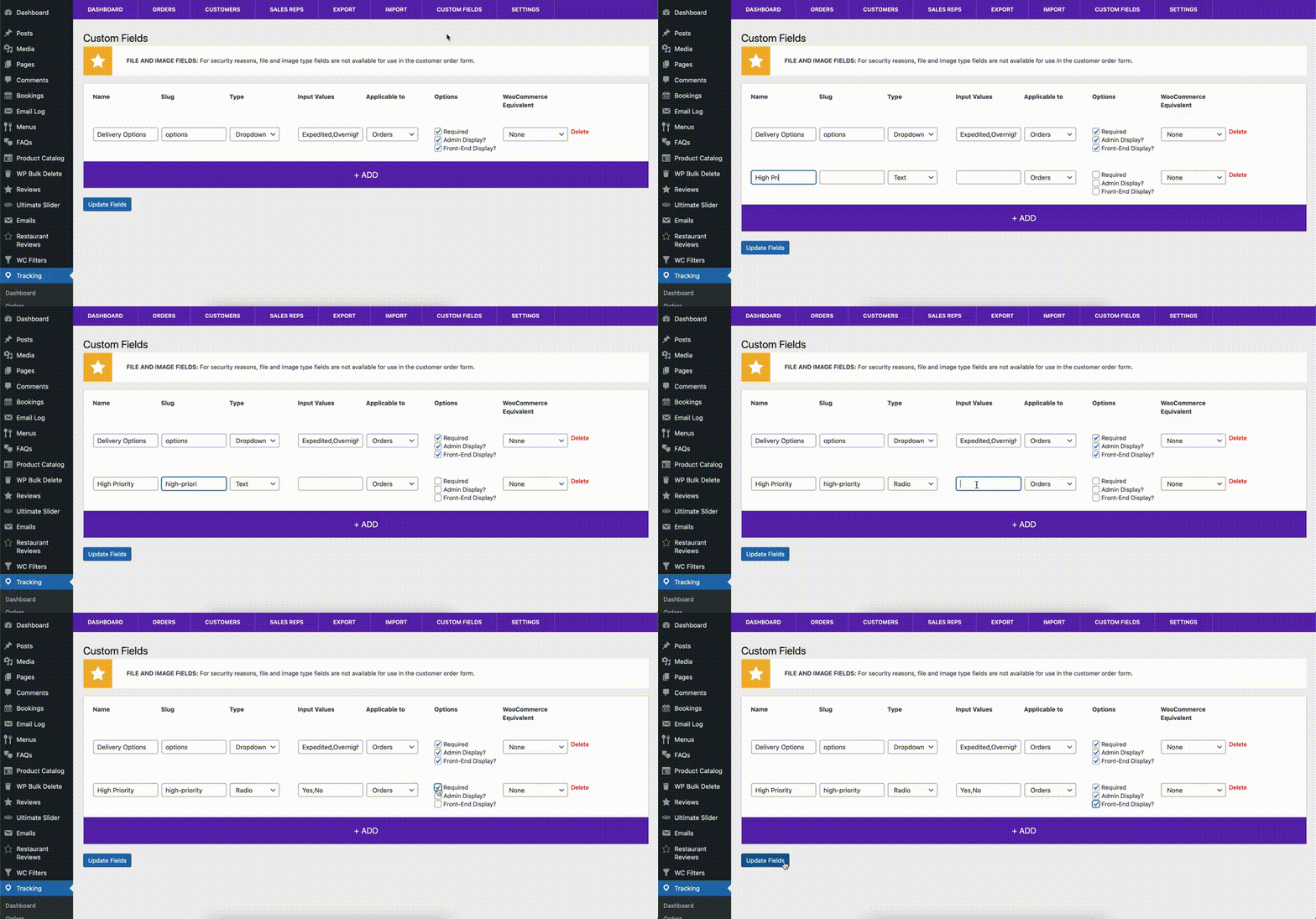
To get started, you’ll need a premium license for the plugin. After that, head to the Custom Fields tab. Click the large Add button to create a field, and then fill in the details. As an example, we’ll create a field called “High Priority”, of the type Radio, with input values “Yes” and “No”, make sure that it’s applicable to Orders, and then check the boxes so that it’s required, displayed in the admin and on the front end.
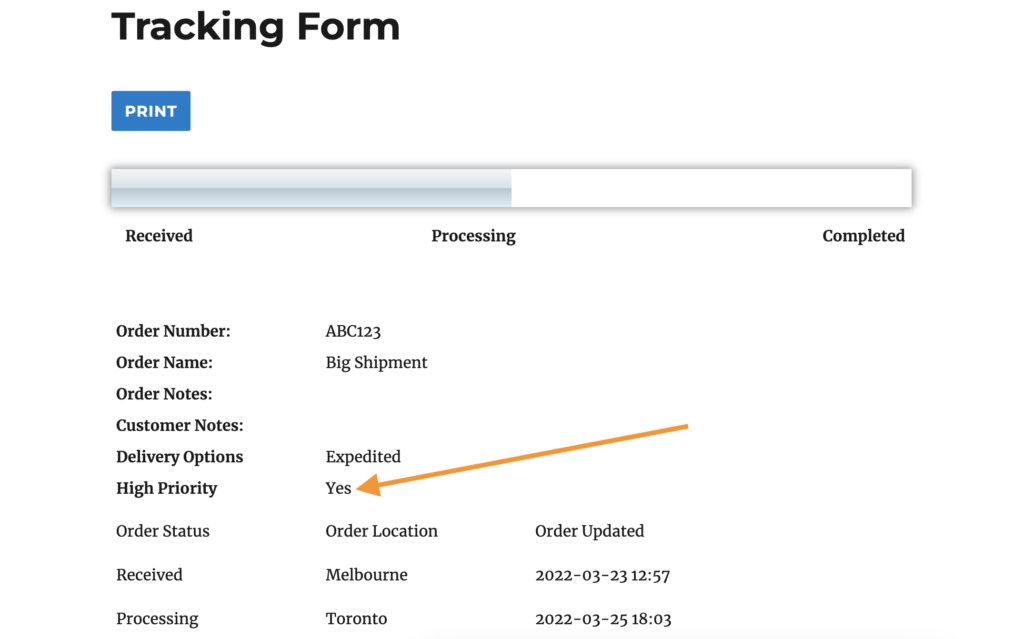
Next, we’ll go to edit one of our orders. You’ll see that there are now radio buttons “Yes” and “No for the “High Priority” field in the custom fields section of the order. We’ll select “No”, and then go to our order tracking page on the front-end after saving the order. There should now be a “High Priority” field displayed with the order information here, which is also shows that the order isn’t high priority.
Custom fields can be used in many ways, but a couple of the most common ones are first, to allow customers to add additional information when they place an order using the [customer-order] shortcode using text, textarea, checkboxes, etc. to help you better process their order, and then second, for the site admin to be able to add helpful information as a customer prepares to receive an order (such as a purchase order PDF in a file type custom field, or technical drawing in an image type field).
Do you have returning customers who place many orders, or sales reps that you want to be able to manage their own orders? Check back in next week, when we cover customers and sales reps in our Order Tracking plugin!




Discover all of our WordPress plugins
Browse Plugins