







Blog
How to Set Up and Maximize SMS Notifications in Order Tracking
Read Post →
Styling Options for Ultimate FAQs
In this latest post from our plugin features series, we’ll be going over the styling options available to you in the Ultimate FAQs plugin.
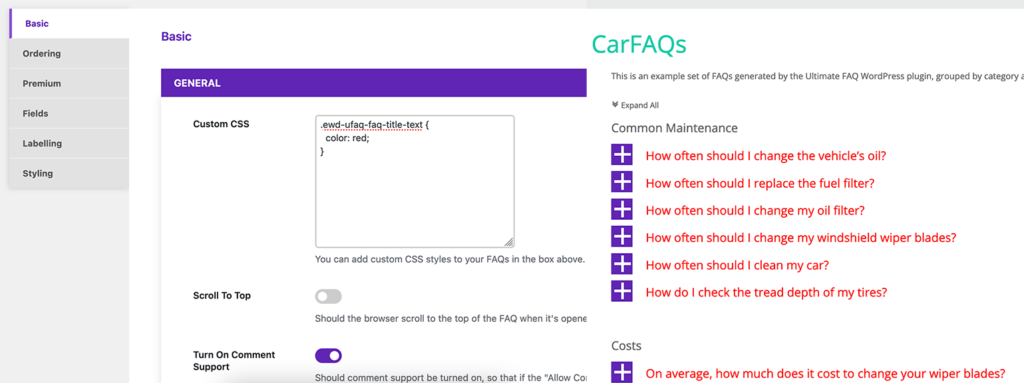
We’ll start with an option available to anyone using the plugin, either the free or premium version, the “Custom CSS” styling box in the “Basic” options tab. This setting can be used to output CSS onto any page where you’re displaying FAQs. It works similarly to the “Additional CSS” setting in the WordPress Customizer, but will only output the content on pages with FAQs, so that you’re not printing extra CSS on every page load and so that the CSS will no longer be printed at all if you decide to deactivate the plugin.
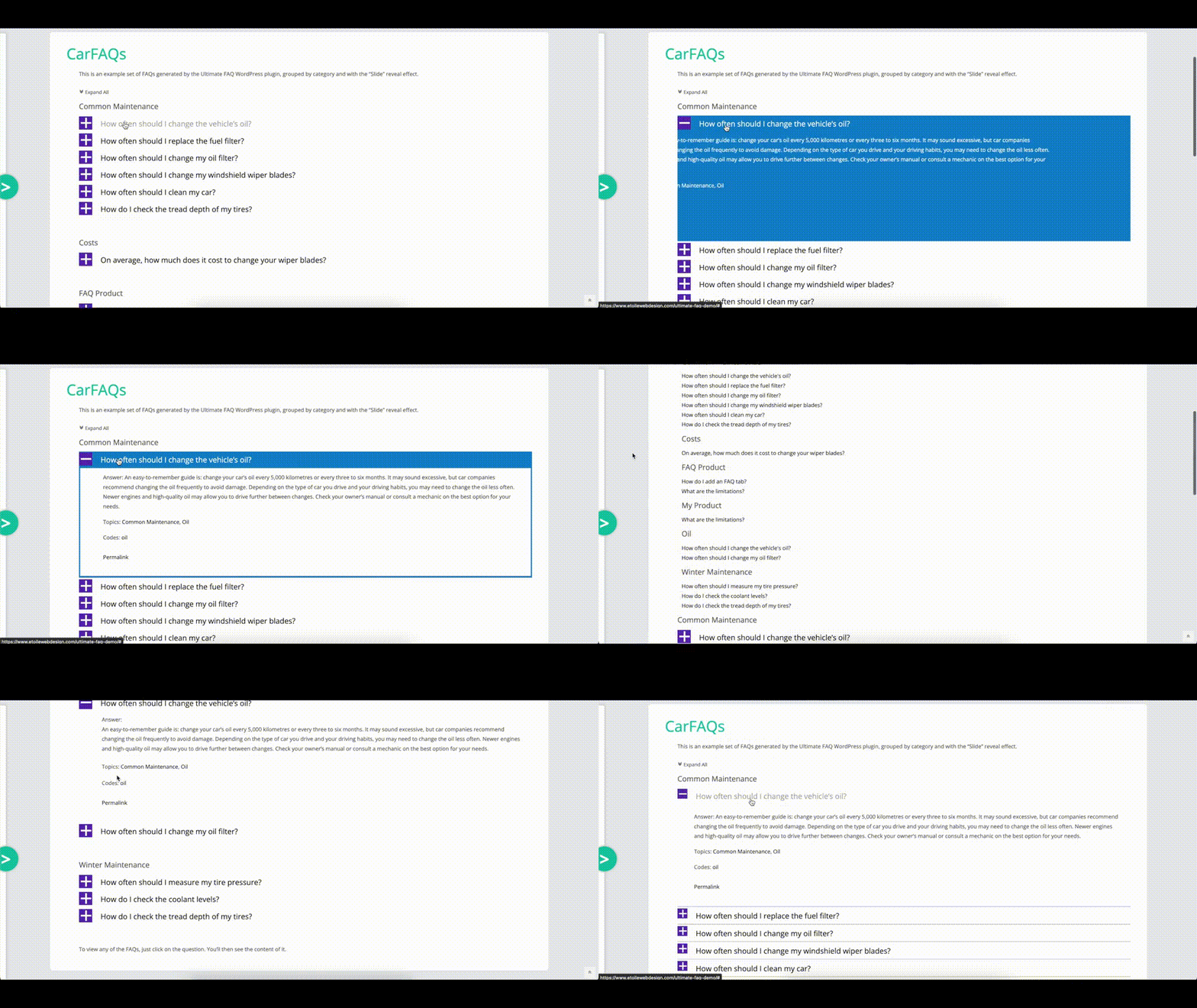
Next up, there are the “Display” options in the “Premium” settings tab. The most important setting here is “FAQ Display Style,” which changes the HTML structure of your FAQs and the CSS rules applied to them based on the radio button you select. There are a number of options available, with popular options being the “Block” and “Minimalist” styles. If you want to have multiple columns for your FAQs, the “Number of Columns” settings can help you do that, and the “Responsive Columns” setting will reduce the number of columns when your FAQs are viewed on smaller screens. You can also change how your FAQs are revealed using the “Reveal Effect” setting. Instead of opening instantly, you can have you FAQs slide open when clicked (or use one of the other 12 reveal effect options!).
When discussing styling options, the most important tab has to be the “Styling” options. One of the most popular options here is the “Toggle Symbol” option, which let’s you select a set of open/closed icons for your FAQs from 15 different icon pairs. Beyond that, there are multiple colour/font control options, which let you style how everything is displayed from the toggle symbol to date each FAQ was created. At the bottom of the tab, you’ll also see settings to control which heading is used for your category and FAQ titles (h1 to h6), which can help you match the FAQ styling to the general styling used on your site.
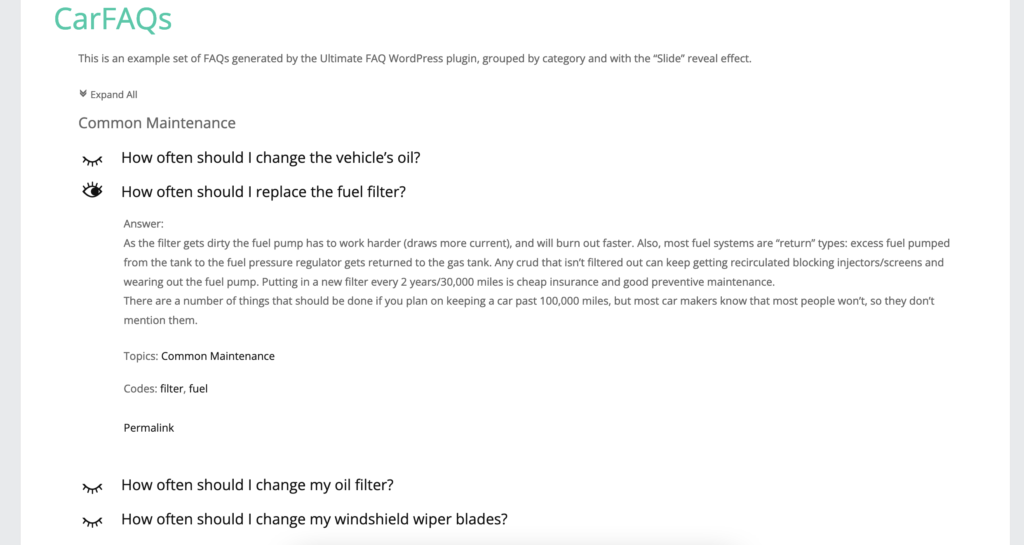
Finally, you can also customize your FAQs by editing the templates directly. For more information on how to do that, see our blog post on editing our plugin template files.
Next week, we’ll be doing our first blog post in this series on our Ultimate Product Catalog plugin, when we cover the custom product tabs feature.


Discover all of our WordPress plugins
Browse Plugins