







Blog
How to Set Up and Maximize SMS Notifications in Order Tracking
Read Post →
Finding the Right FAQ with FAQ Search
This is the first post in a series covering the key features that make our plugins so useful.
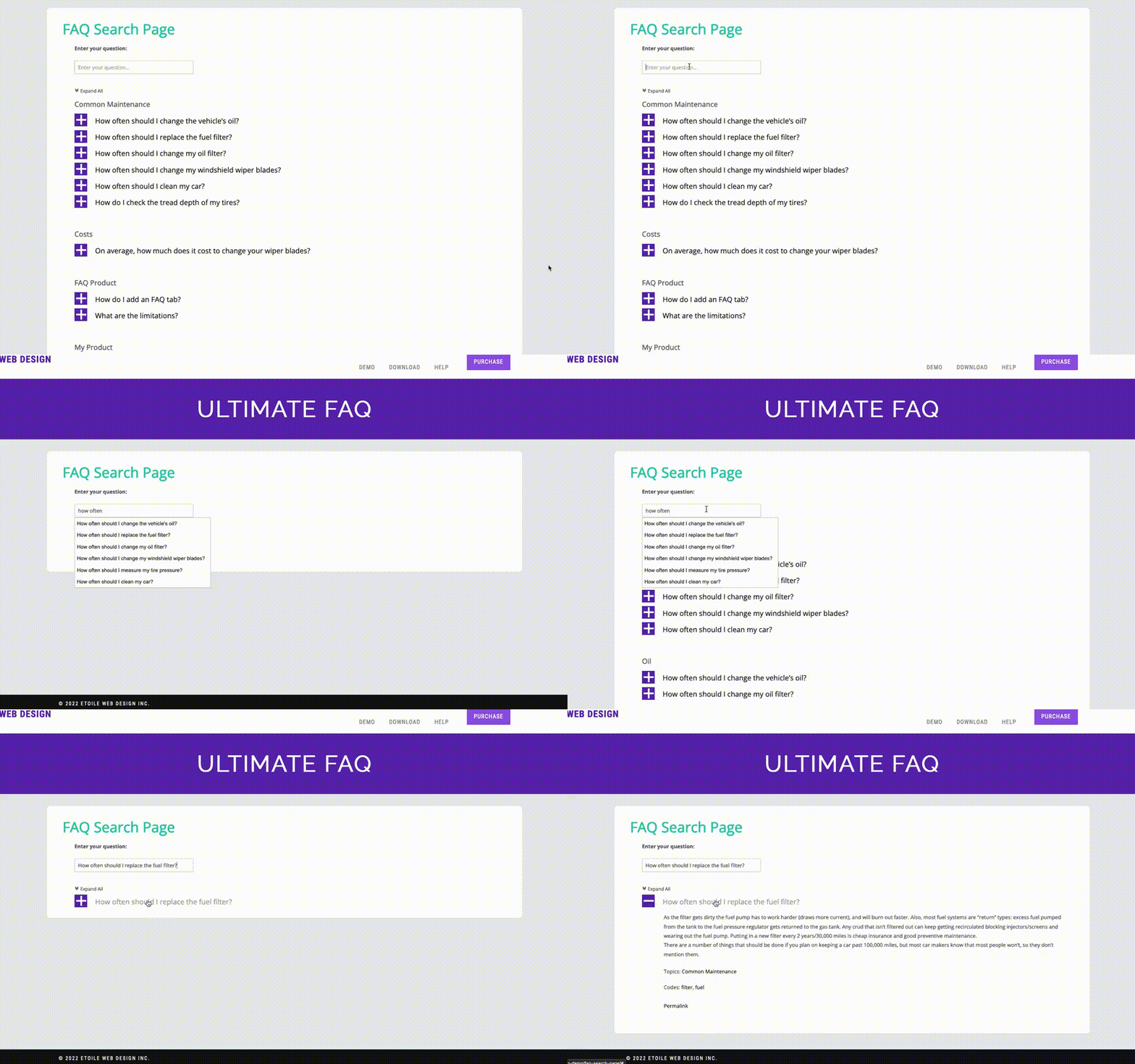
Today, we’re going to cover the FAQ search feature of the Ultimate FAQ WordPress plugin. The FAQ search shortcode is exactly what it sounds like. Instead of your users clicking through your entire FAQ section to find the help that they need, a text search bar is added to the page. Users can type a keyword or part of a question into the text input, and FAQs that match the terms entered in the search will be displayed. There is also an option to turn on an auto-complete feature, so that FAQ titles matching the portion of the search term which has already been entered are displayed in a dropdown.
To get started using the FAQ search feature, you’ll need the premium version of the Ultimate FAQs plugin. Next, we’ll add the FAQ search to a page. Go to “Pages”, press the “Add New” button, and then enter a title for your FAQ search page. After that, click the “+” to add a block to the page. Type in “Search FAQs”, and then select the search block when it comes up. Click the publish button, and you should now see the FAQ search bar on the page you’ve just created.
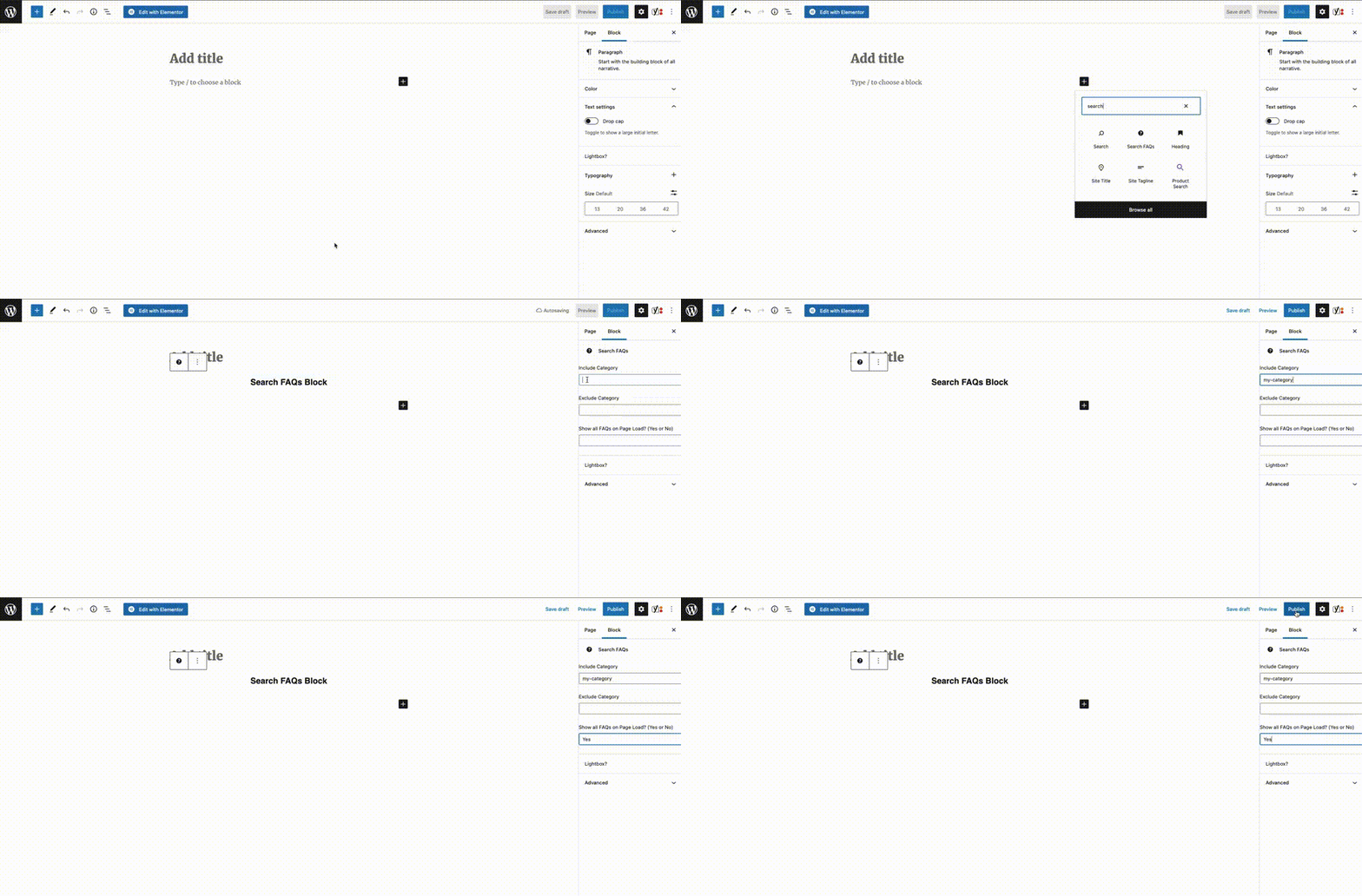
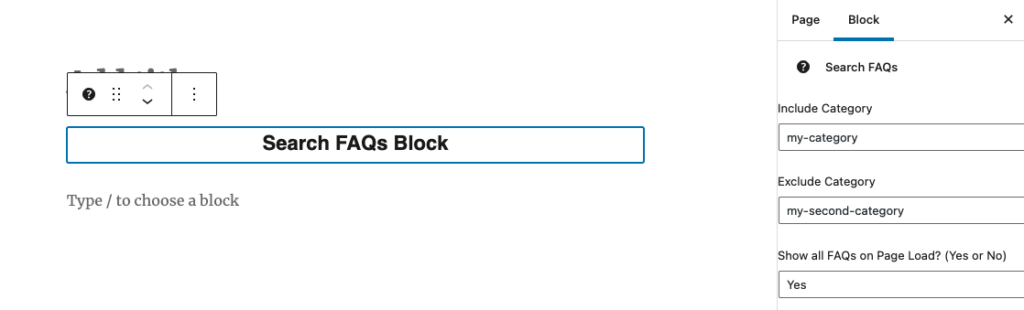
By default, all FAQs that you create using the plugin will be available to search using the search bar. If you only want certain FAQs to be searchable, you can specify that using the “Include Category” attribute of the search block in the right-hand sidebar. Similarly, if you want to exclude a certain category from being searchable, you can use the “Exclude Category” field. To make it easier for users to browse your FAQs, the search block can also be set to display all of the FAQs that you’ve created when the page first loads.
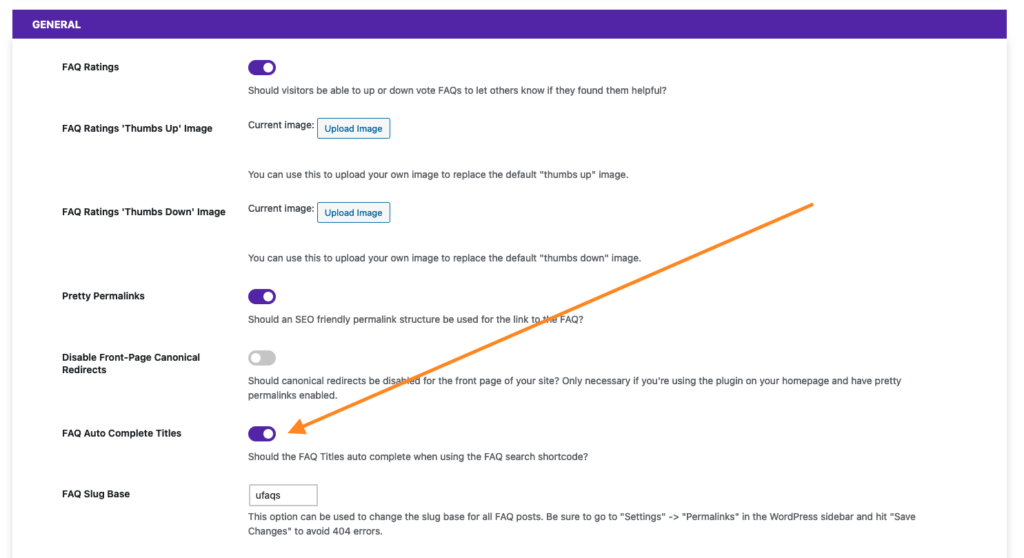
Finally, we’ll enable the auto-complete feature, so that visitors can easily see if there are FAQs that come close to matching their queries when they start typing in the search bar. Head to the “Premium” tab of the “Settings” page in the Ultimate FAQs admin area. In the “General” section, there’s a toggle option called “FAQ Auto Complete Titles”. Toggle that on to enable the auto-complete feature.
Let’s take a look at the final product! We’ve now got our FAQs displaying when the page loads, so that visitors can browse them. There’s also the search bar where users can either select a title from the auto-complete feature, or enter a keyword and read through FAQs related to that keyword.
Check back next Tuesday, when we cover WPForms FAQ integration, which displays FAQs related to a support request before the request is even submitted to your team!


Discover all of our WordPress plugins
Browse Plugins