








Blog
How to Set Up and Maximize SMS Notifications in Order Tracking
Read Post →
How to Edit a Template – WordPress Plugins
Over the past 12 months, we’ve been rebuilding our plugins to meet the latest WordPress standards and conventions. One of the benefits of these changes is that everything displays on the front-end by our plugins can be customized, by creating your own template files.
In this post, we’ll go over how to create your own FAQ answer template, but the general instructions apply to all of our plugins. Simply replace the “ufaq” portion of the folder name name used from “ewd-ufaq-templates” to whatever the appropriate plugin abbreviation is for you (ex. For the product catalog it would be “ewd-upcp-templates”).
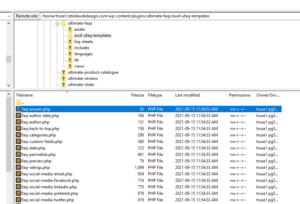
1. To get started, you should have FTP access to your server (in the screenshots below, we’re using FileZilla), so that you can download and upload files to your WordPress installation. Navigate to the templates folder for the plugin that you’re editing. For Ultimate FAQs, you would click on “wp-content” -> “plugins” -> “ultimate-faqs” -> “ewd-ufaq-templates”.
2. Next, find the template that you want to edit. In our case, we’re going to change the FAQ answer to add the label “Answer:” before each FAQ answer, so we’ll download the “faq-answer” template to our desktop.
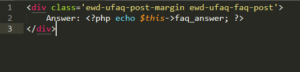
3. Open up the file that you downloaded. You should see the HTML div that contains the structure, along with where the answer is being added. We’ll add in our label before the answer text, and then save that file.
4. Now we need to add that file to our server. Navigate to the child theme you’re using, or your active theme if you’re not using a child theme, and create a folder with the same name as the templates folder in the plugin, so “ewd-ufaq-templates” in our case.
5. Upload the file you edited to that folder. The plugin will automatically use any templates with the same names found in your active theme’s folder. Once you’ve done that, you should see a label before each of your FAQs.
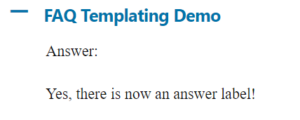
That’s all it takes to edit or change any of the content displayed on the front-end by our plugins!


Discover all of our WordPress plugins
Browse Plugins