









Blog
How to Set Up and Maximize SMS Notifications in Order Tracking
Read Post →
How to Set Up Payments for Orders in Order Tracking
If you’re using the Order Tracking plugin to manage customer orders, enabling online payments can significantly streamline your workflow. Instead of manually confirming and collecting payment, you can allow customers to pay directly through your site, reducing friction and improving cash flow.
Not using Order Tracking yet? You can test the free version to explore the core features before upgrading.
Here’s how to properly configure payments.
Step 1: Install and Activate the Plugin
Make sure you have the Order Tracking plugin installed and updated to the latest version. Payment functionality requires the Premium version or the Ultimate version.
Once activated, navigate to the plugin settings in your WordPress dashboard.
Step 2: Enable Order Payments
In the settings panel, navigate to the Payments Screen.
Enable Allow Order Payment By PayPal to let customers complete transactions when placing or viewing an order.
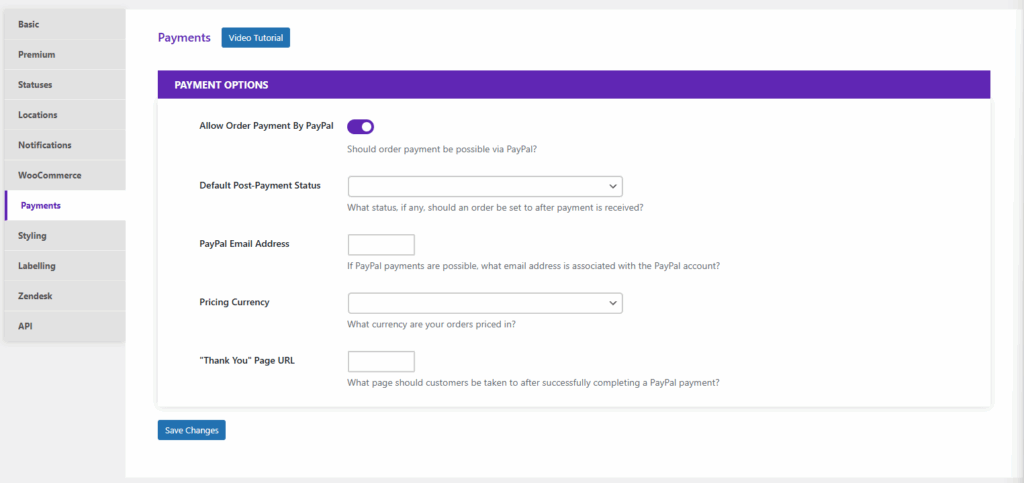
Once enabled, the following payment settings become available:
Payment Options Explained
Default Post-Payment Status
Choose the order status that should be automatically applied after payment is received (for example, Pending Payment or another status that fits your workflow).
PayPal Email Address
Enter the email address associated with your PayPal account. Payments will be sent to this account.
Pricing Currency
Select the currency your orders are priced in. Make sure this matches your PayPal account configuration.
“Thank You” Page URL
Specify the page customers should be redirected to after successfully completing a PayPal payment. This is typically a confirmation or order summary page.
Step 3: Test the Payment Flow
Before enabling payments on your live site, you can test everything on your staging site:
- Place a test order
- Complete a PayPal payment
- Confirm the order status updates correctly
- Verify that the customer is redirected to the correct “Thank You” page
Testing ensures everything works properly and prevents customer confusion.
Why Enable PayPal Payments?
Adding PayPal payments transforms Order Tracking from a simple tracking system into a more complete transaction workflow. It reduces manual invoicing, speeds up processing, and provides a more professional experience for your customers.
If you’re ready to unlock payment functionality and streamline your order management process, upgrading to Premium or Ultimate gives you access to the tools needed to accept payments directly on your site.



Discover all of our WordPress plugins
Browse Plugins