









Blog
How to Set Up and Maximize SMS Notifications in Order Tracking
Read Post →
🧠The Pros and Cons of Using Caching on Your WordPress Site
When it comes to optimizing your WordPress site, caching is one of the most common (and most misunderstood) performance tools. Done right, it can dramatically improve load times, reduce server stress, and boost SEO. But if you’re not careful, caching can also lead to outdated content, broken layouts, or frustrated visitors.
Let’s explore how caching works, what its benefits are, and how to avoid common pitfalls — especially if you regularly update your product listings or catalogs.
What Is Caching and Why It Matters
Caching is the process of temporarily storing static versions of your site’s pages so they can be delivered more quickly to visitors. Instead of regenerating every element from your database each time someone loads your site, a caching plugin serves a “snapshot” of your page.
The benefits are significant:
✅ Faster page load times — Search engines and users love speed.
✅ Reduced server load — Particularly helpful during high-traffic periods like holidays or big promotions.
✅ Better user experience — Smooth browsing encourages engagement and conversions.
The Downside: When Cache Goes Stale
While caching speeds up your site, it can sometimes cause issues if your content changes frequently. If an older version of a page remains stored in the cache, visitors might see outdated information, incorrect pricing, or missing updates.
For dynamic or interactive websites, this can quickly become a problem.
Caching and the Ultimate Product Catalog
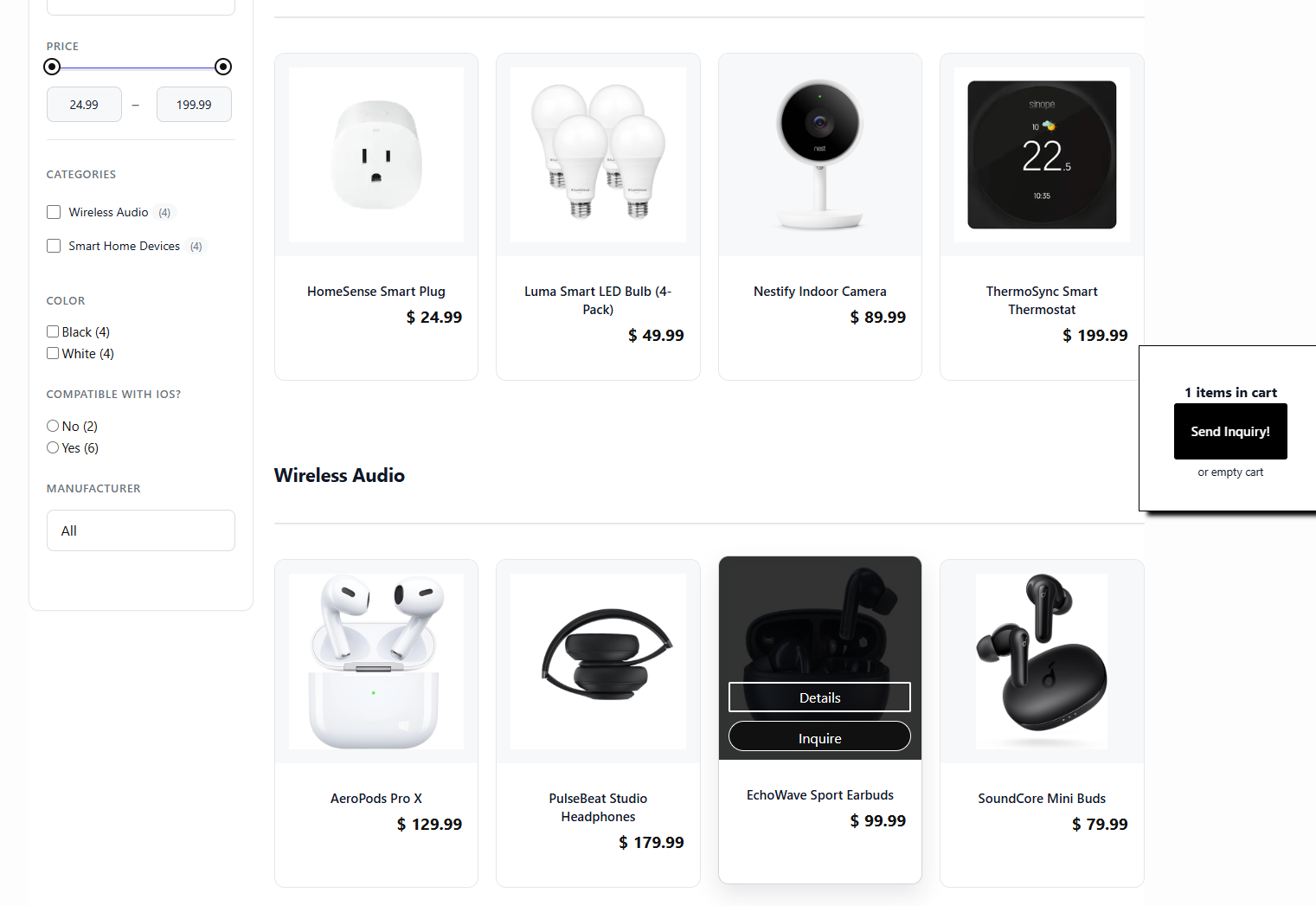
For Etoile Web Design users, this is especially important if you use the Ultimate Product Catalog.
Your product catalog may update often — whether you’re adding new products, changing prices, or running seasonal promotions. If your caching plugin doesn’t refresh its cache quickly enough, visitors might see old catalog data or incorrect details when filtering or browsing.
To avoid this, make sure your caching plugin:
- Excludes your catalog pages (or sets shorter expiration times for them).
- Clears cache automatically when products are added or updated.
- Plays well with AJAX filtering, so users always see live results.
Many modern caching tools like WP Rocket or W3 Total Cache let you fine-tune these rules. You can also clear your cache manually whenever you update your catalog.
Balancing Speed and Accuracy
The goal is to find the right balance. Keep caching enabled for static pages like your homepage, about page, or blog, but apply more flexible settings for frequently updated or interactive sections.
A few best practices:
- Use object caching for database queries that don’t change often.
- Set a short cache lifespan for dynamic areas.
- Test your pages after major updates to ensure everything looks right.
Final Thoughts
Caching can be a huge performance win — as long as it’s configured properly. By understanding how it interacts with your content, you can keep your site fast and accurate, ensuring a smooth experience for every visitor.
Your products deserve to be seen at their best, in real time.
👉 Optimize smarter this season: Review your caching settings and make sure they’re helping, not hurting, your store’s performance.



Discover all of our WordPress plugins
Browse Plugins