









Blog
How to Set Up and Maximize SMS Notifications in Order Tracking
Read Post →
Enhance your site’s FAQs with AI
Whether you’ve been running a website for a long time or are just setting one up, you know the importance of having a good FAQ page. This becomes even more crucial if you’re running an online shop/e-commerce site.
Up until very recently, the only way to create your FAQs was good old fashioned typing them up or copy/pasting from other content. That’s all changed in the latest version of our Ultimate FAQ plugin for WordPress, which includes a new AI engine to automatically create FAQs based on the content of your website.
It’s as simple as choosing how many FAQs you want and which page(s) to pull the content from. Check out the gif below to see how it works.
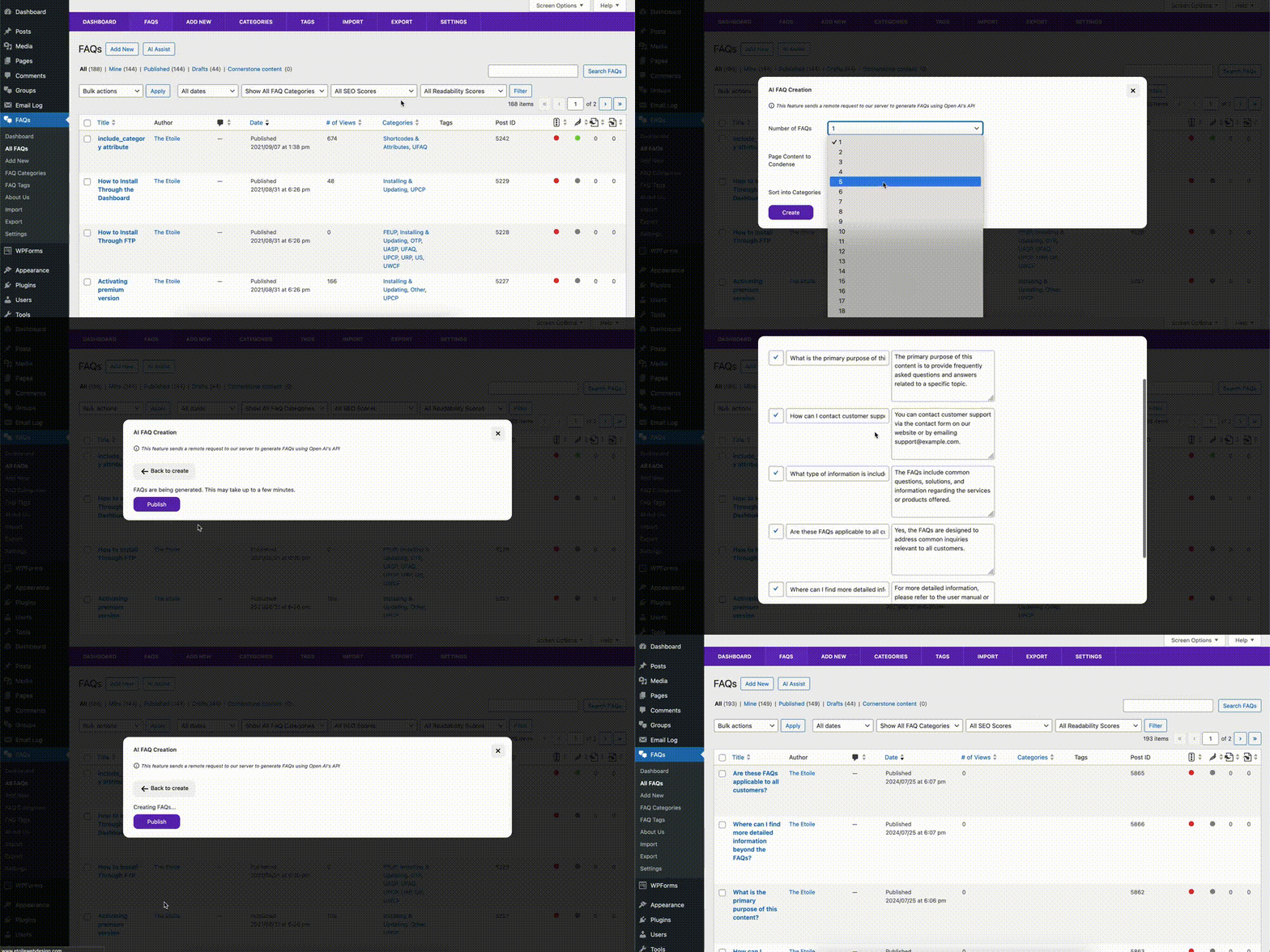
Of course you can still create FAQs manually, but now you don’t need to! Need to create FAQs about shipping for your store? Just choose your shipping policy page as the content, select the number of FAQs you want and presto, you’ve got a shipping FAQ section. Sames goes for your return policy or any other common questions you might get about content that’s already on your site.
What if I don’t run a shop and have FAQs/content that is more specific than a shipping or return policy? No problem. The Ultimate FAQ plugin’s AI mode has got you covered. Because it uses OpenAI, you’re getting the same level of AI as when you use ChatGPT. Meaning it can effectively parse any page on your site, no matter the content, and the plugin is designed to transform this into question/answer format. The cherry on top: Before publishing anything, you get to view the generated FAQs and make any small changes that are necessary.
The result: Perfect FAQs in a fraction of the time!
But how does it work?
If you’re already using the Ultimate FAQ plugin, then generating new FAQs via AI will be familiar to you, as we designed the tool with the same UI as the rest of the plugin. All you have to do is go to the FAQs screen in the plugin admin and click the AI Assist button.
A modal will open with the following fields to configure:
- Number of FAQs: Use this to choose the number of FAQs you want the plugin to automatically generate using AI.
- Page Content to Condense: Choose which posts and/or pages you want to pull content from to generate the FAQs.
- Sort into Categories: Set this to Yes if you want the plugin to automatically assign the AI-generated FAQs into categories.
When you’re done, click the Create button to begin the FAQ generation process. When it’s done, you’ll see a list of all the generated FAQs, which you can modify if needed. When you’re ready, just hit the Publish button.
The best part? This feature is available in the free version of the plugin! So, even if you aren’t already using the plugin, you can try it out and get your FAQ page started for free! It is limited to one AI-generated FAQ at a time and you can choose only one page or post from which to pull the content. However, in the premium version, you have much more flexibility, with the ability to generate up to 20 FAQs at a time and select multiple pages and/or posts from which to pull the content.
If you need further help with creating FAQs using AI, be sure to check out our documentation. And, for any questions about the plugin or purchasing, don’t hesitate to contact us via our support center.


Discover all of our WordPress plugins
Browse Plugins