






Blog
How to Set Up and Maximize SMS Notifications in Order Tracking
Read Post →
Build a WordPress Shop Website – Site Content
This is the blog post that accompanies the following video:
Transcription:
The most important part of any website is the content. In this video, we’re going to create 5 pages that almost every shop will want to have: a home page, a page that displays the items in your inventory, an FAQ page, as well as about us and contact us pages. At this point, you should have a domain with WordPress installed and user accounts created for the people who need them. If you don’t, check out the earlier videos in our tutorial series.
To get started, log in to your website with your editor account. Let’s start by creating our homepage with a bit of basic content. Most themes will have a separate homepage template, so we won’t worry too much about this page for right now. Go to the “Pages” section of the WordPress admin, and click on the “Add New” button at the top of the page. We’ll call our page “Home” for now by clicking the title bar and typing in “Home”, but you could title this page your business’ name as well. Next, write a couple of quick sentences describing your business, and hit the “Publish” button. Congratulations, you’ve just added the first page to your site!
Next, let’s make the page that we just created the homepage for our site. To do that, go to “Settings” -> “Reading” in the WordPress admin menu. Click on the “A static page” radio button, and select “Home” from the “Front Page” dropdown menu of the pages on your site. Scroll down, and click the “Save Changes” button. Next, open up a new tab, and navigate to your website. You should now see the page you just created when you enter your site’s URL.
Great. Next, we’re going to create the most important page on your site, the shop itself. Go to the “Pages” section again, and click on “Add New”. This time we’ll title our new page “Shop”. Most stores will use a product catalog plugin to display their inventory, which we’ll be covering in a later video, so we’ll just put “Products coming soon.” as the content for the time being. Hit “Publish”, and we’re done with the menu page for now. If you’ve got your goods catalog available as an image or as a PDF, you could also put it in temporarily. To do that, click the “Add Media” button, go to “Upload Files”, upload the file or files you want to display as your catalog, then select them all by holding “CTRL” on a PC and “CMD” on a Mac while clicking on the files you want, and finally press “Insert into Page” to add them to the page. Next, hit “Update” and you’re done adding a temporary inventory.
That’s it for pages that are really specific to a shop. We’re also going to add three pages that most sites need: an about us page, which talks about the history of your business and what makes you unique, an FAQ page, so that common questions can be answered quickly for visitors, and a contact us page, so that visitors can get information on how to contact you by phone along with listing your address.
Let’s create our “About Us” page. We do it in exactly the same way as the other pages, just this time we’ll add a couple of paragraphs of content, and a bullet point list explaining our values. Things you usually want to mention in an “About Us” page include things like when you opened, what the unique history of your store is, such as how you became interested in a particular line of goods you stock or your experience working with the products in your inventory, and any specialties you might have. We’ll also add in a bullet point list, talking about our business’ values. To do that, click on the “Bulleted List” button. We’ll list our values as “Courteous” and “Knowledgeable”. Hit “Publish”, and then press the “Add New” button.
For the FAQ page, we’ll just put in our title “Frequently Asked Questions” and then add a sentence saying “FAQs coming soon” before hitting publish. We’ll be adding in FAQs using a plugin in a later video.
Finally, we’ll add a “Contact Us” page. The format of this page depends a bit on the type of store you run. If you’re running a neighbourhood store, this page might just have your address and an embedded map showing your location. Most stores will want a contact form, so that potential customers are able to get in touch with you easily to have their questions answered. We’ll go over adding a contact form in our plugins video as well, but for now, it’s probably a good idea to add your phone number and address on this page. If you want to add an embedded map showing the location of your shop, we’ve linked to our video of it in the description.
That’s it for the basic content of your shop site! In the next video, we’ll choose a theme, customize it with your color scheme and pictures of your store, and build a proper homepage for your website.

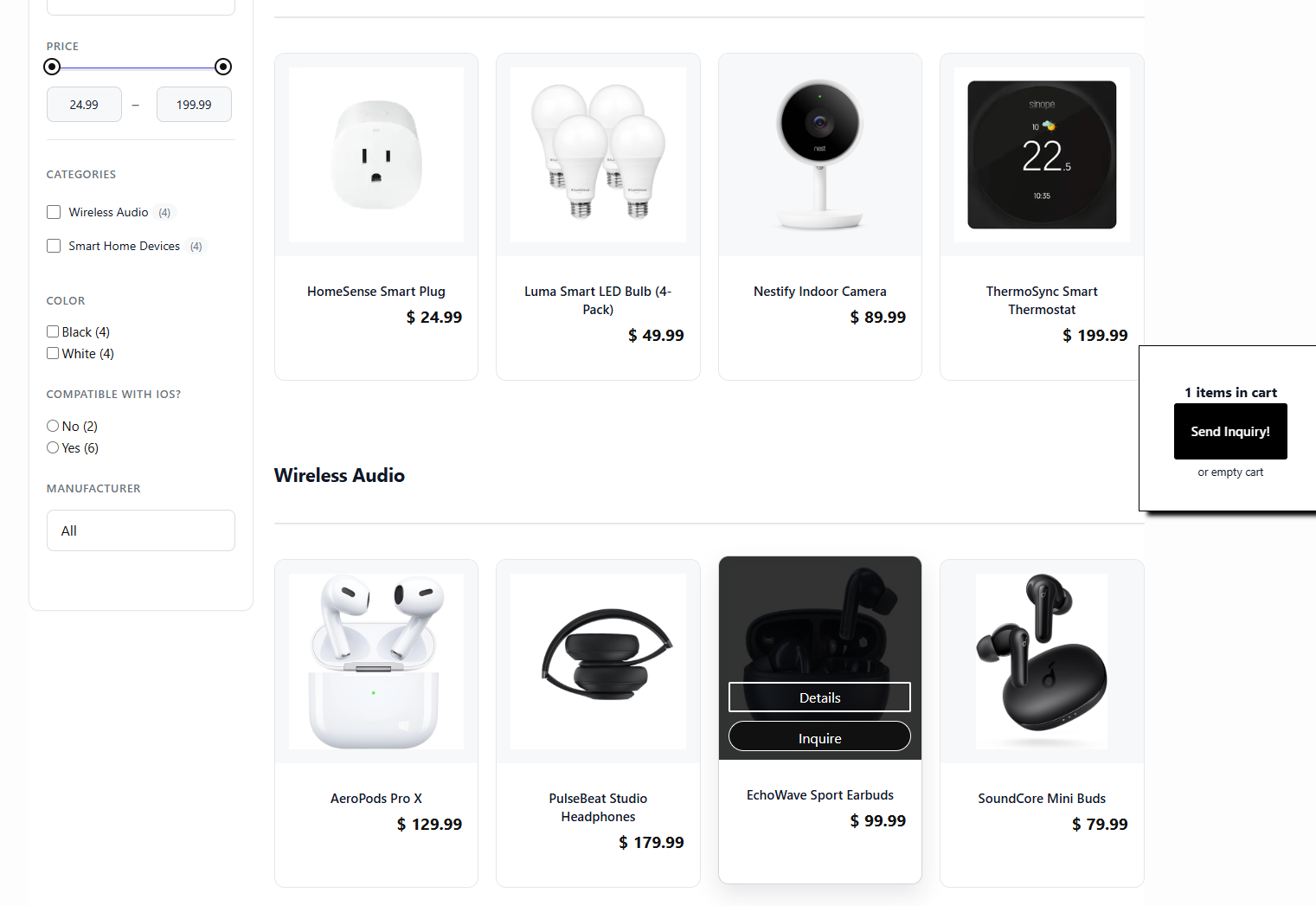

Discover all of our WordPress plugins
Browse Plugins