BLACK FRIDAY SALE on now! 20% off all plugins and themes!
Ends in:
Use promo code: BF2025

Ultimate Product Catalog
Ultimate FAQs
Order Tracking
Ultimate WP Mail
Ultimate Reviews
Ultimate Appointment Scheduling
Ultimate WooCommerce Filters
Ultimate Slider
Ultimate Product Catalog
One of our most popular plugins, the Ultimate Product Catalog is a versatile plugin built to showcase your products in the best way possible.
Comes with full WooCommerce integration, advanced responsive layouts, custom fields, product inquiry form and much more.
Comes with full WooCommerce integration, advanced responsive layouts, custom fields, product inquiry form and much more.
Ultimate FAQs
Easily and quickly add an FAQ section or knowledge base to your site with the Ultimate FAQ plugin. Make sure you are not losing customers while reducing your support load.
Comes with advanced FAQ search, several responsive layouts and icon sets, WooCommerce integration, WPForms integration, SEO features and much more.
Comes with advanced FAQ search, several responsive layouts and icon sets, WooCommerce integration, WPForms integration, SEO features and much more.

Order Tracking
Give your customers the best WordPress order tracking experience possible with an efficient plugin that is quick and easy to use for you.
Create unique statuses and locations, integrate with WooCommerce, SMS notifications, custom fields, assign to sales reps and customers, PayPal integration and much more.
Create unique statuses and locations, integrate with WooCommerce, SMS notifications, custom fields, assign to sales reps and customers, PayPal integration and much more.

Ultimate WP Mail
Send automated emails and SMS notifications based on website triggers, automated events or manual triggers. And monitor emails with an advanced log.
Comes with WPForms integration, WooCommerce integration, automated SMS functionality, multiple templates, automated send events, SMTP functionality and more.
Comes with WPForms integration, WooCommerce integration, automated SMS functionality, multiple templates, automated send events, SMTP functionality and more.

Ultimate Reviews
Quickly set up a full-featured reviewing platform on your site with Ultimate Reviews. Let people submit ratings and reviews, and display them anywhere.
Comes with WooCommerce integration, custom fields, SEO/structured data features, advanced email notifications, review voting, multiple layout options and much more.
Comes with WooCommerce integration, custom fields, SEO/structured data features, advanced email notifications, review voting, multiple layout options and much more.

Ultimate Appointment Scheduling
Start taking appointments on your website in minutes with Ultimate Appointment Scheduling. Full featured, easy to set up and easy to use.
Create multi-step booking forms, add unique service providers and locations, automated notifications, calendar view, many customization options and much more.
Create multi-step booking forms, add unique service providers and locations, automated notifications, calendar view, many customization options and much more.
Ultimate WooCommerce Filters
Increase conversions and sales on your WooCommerce-powered online store with advanced filters that let customers find what they need right away.
Built-in sizes, colors, category and tag filters, advanced price filtering, add custom attribute filters, ordering scheduling, many styling and layout options, much more.
Built-in sizes, colors, category and tag filters, advanced price filtering, add custom attribute filters, ordering scheduling, many styling and layout options, much more.

Ultimate Slider
A versatile plugin, Ultimate Slider lets you add a carousel or slider to any area of any page on your site in just a few minutes.
Comes with shortcodes and blocks for inclusion anywhere on your site, drag-and-drop slides, WooCommerce integration, styling, animation and icon options, and more.
Comes with shortcodes and blocks for inclusion anywhere on your site, drag-and-drop slides, WooCommerce integration, styling, animation and icon options, and more.
Ultimate Showcase
Designed to integrate directly with the Ultimate Product Catalog plugin, but equally as useful as a standalone WordPress theme.
Comes with built-in search functionality for Ultimate Product Catalog or WooCommerce products, many styling and layout options, customizable homepage and more.
Comes with built-in search functionality for Ultimate Product Catalog or WooCommerce products, many styling and layout options, customizable homepage and more.
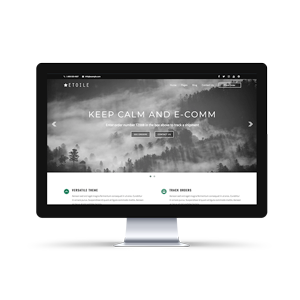
Keep Calm and E-Comm
Designed to integrate directly with the Order Tracking plugin, but equally as useful as a standalone WordPress theme.
Comes with built-in search functionality for Order Tracking orders or WooCommerce products, many styling and layout options, customizable homepage and more.
Comes with built-in search functionality for Order Tracking orders or WooCommerce products, many styling and layout options, customizable homepage and more.