






In our previous post, we covered how to use custom fields within custom-created product tabs in the Ultimate Product Catalog WordPress plugin. This week we’re looking at an even more powerful way to use custom fields in your catalogue: as custom filters for attributes like size, colour, brand and more.
To get started, you’ll need the premium version of our catalogue plugin. Head to the “Custom Fields” tab in the plugin’s admin area, and click the “Add” button. We’re going to create a sample “Size” field, which will be checkbox type with values “XS”, “S”, “M”, “L” and “XL”. We’ll display the values in the details layout, and check the “Searchable” box so that users can filter products using this custom field. We’ll select “Radio” as the search control type, since we expect visitors to be searching for a specific size and not multiple sizes.
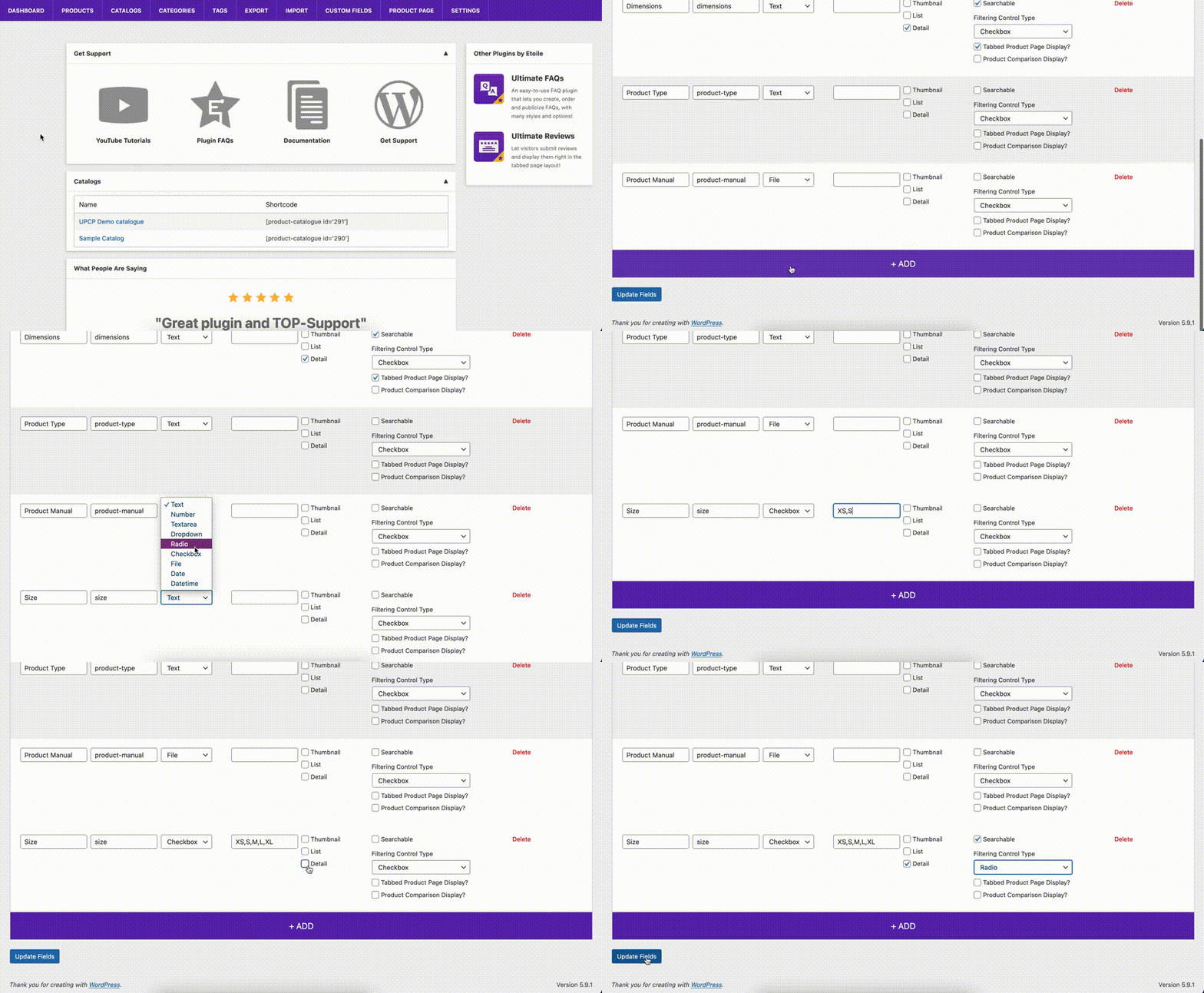
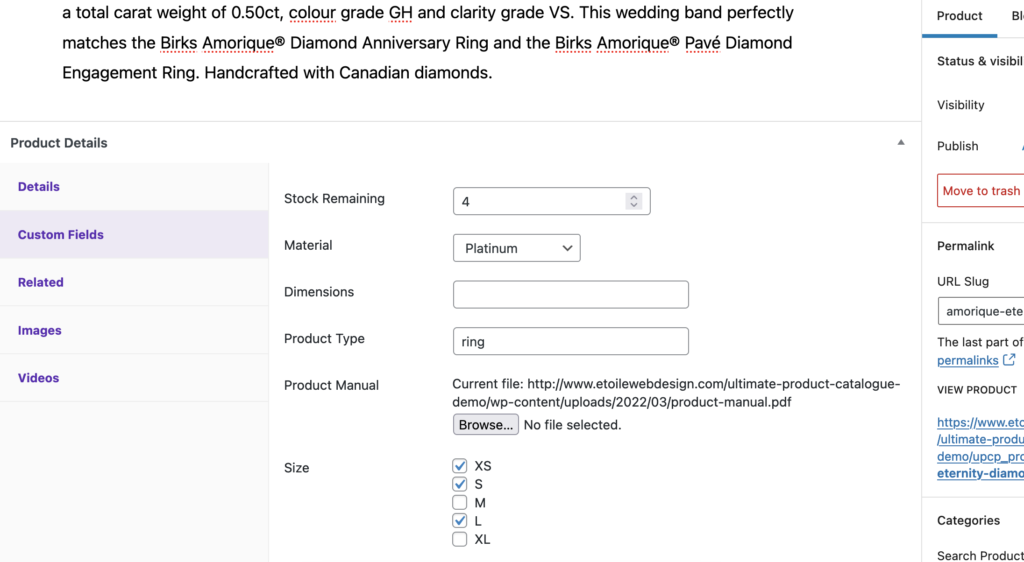
Once the custom field has been created, we’ll need to go through our products and check off whichever sizes a particular product is available in.
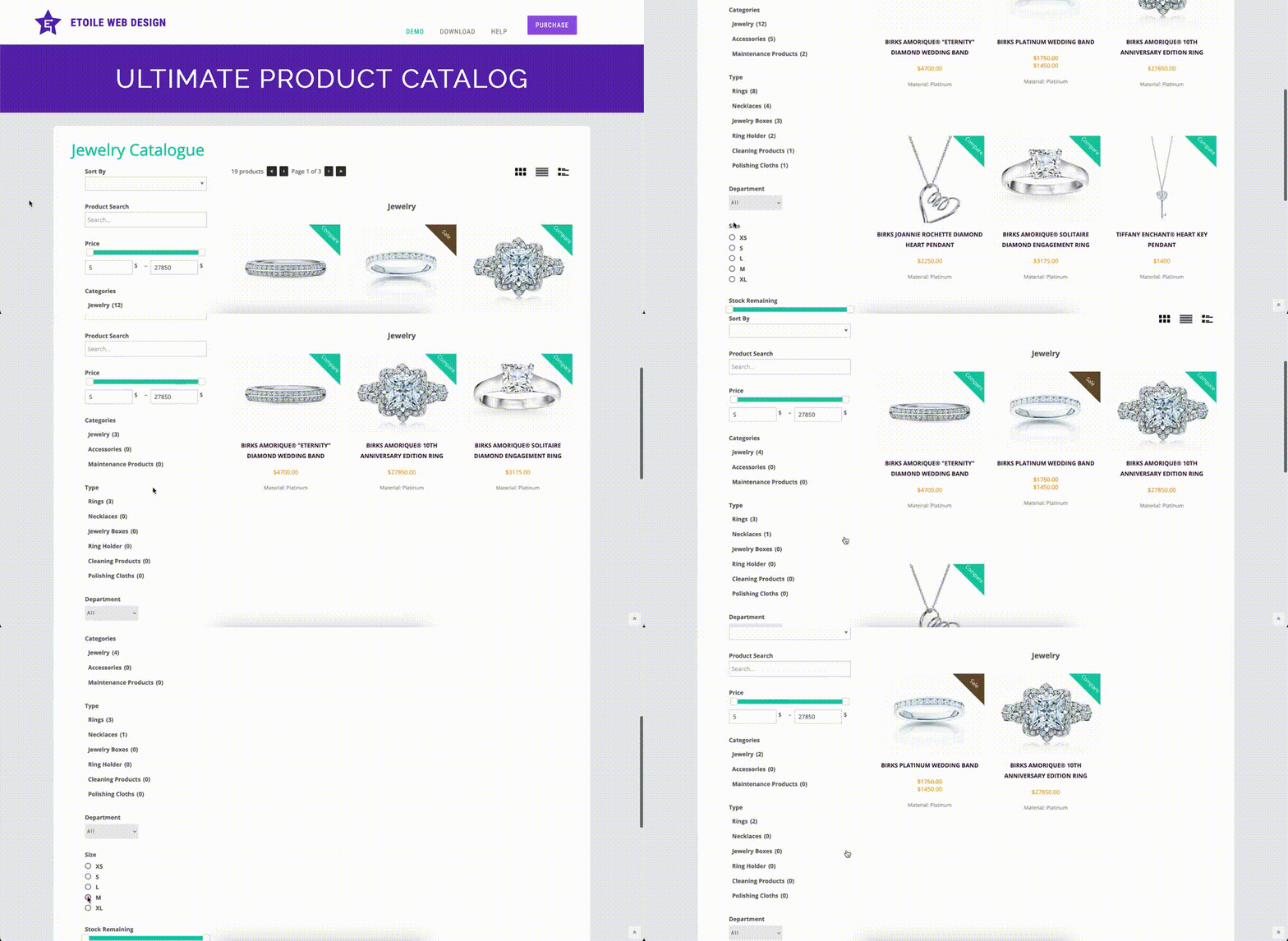
When that is done for each product, head to the front-end of your site and navigate to your catalogue page. You’ll see that in the catalogue sidebar, there’s now a filter titled “Size” with “XS”, “S”, “M”, “L”, and “XL” radio buttons as options for it. You’ll also see that each of those size options has the number of products matching the size in brackets, to let your visitors know how many items are available for them to browse. Click on a size, and you should see the catalogue results refresh to show only the items available in that size.
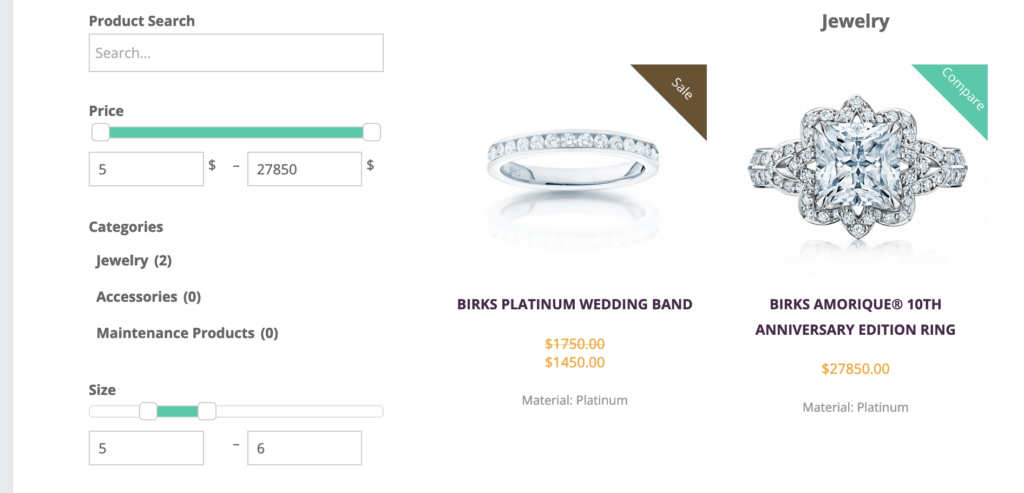
If instead of you’ve got numbered sizes (ex. “28”, “30”, “32”, etc.), you can instead create a “Number” type custom field. The advantage of the number type field is that you can use the “Slider” control type for filtering, which lets your users select a range of sizes that they’re looking to browse (ex. 28-32). The other options for the filtering control type are “Dropdown”, which is useful when a visitor is looking for one very specific type of product such as a brand, and checkbox, which is a great option when a visitor might be open to a number of options.
Want to update how your filtering is styled? Check back in next week when we cover styling options for the Ultimate Product Catalogue!