




Blog
How to Set Up and Maximize SMS Notifications in Order Tracking
Read Post →
Styling Your Ecommerce Site
We’ve put together this post to go along with our video tutorial series that shows you how to set up a shop site. Once you’ve added the content and followed the last video (which explains how to run your checks and debugging), you’ll want to look at styling your site. This post covers the steps we took to get our demo site looking more professional and polished.
You can view our demo site here: http://www.ewdyoutubetutorials.com/ecommerce-site/
Logo
The first thing we did was add a new custom logo. If you’re making the site for an existing store, it’s likely that you’ll already have branding and a logo in place (on your storefront, marketing materials, etc.). If it’s a new startup, you can work with a graphic designer to create a unique logo that captures the essence of your company. Either way, you’ll want to display this logo prominently on your site.
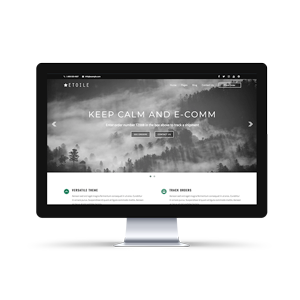
The theme we’re using (Keep Calm and E-Comm) provides options to specify the size and position of your logo, but the default setting worked well for our style of logo. This particular theme also has an option to specify a secondary logo because the site menu shows transparent over the slider on the homepage, but then as a white bar in all other instances. We made use of this to upload both the green and white logos.
Homepage
After getting the logo in there, our next focus was the homepage, as that’s the first thing people see when they come to your site, and the page for which we needed to make the most changes. The theme comes with a special page template for your homepage, so the first thing we needed to do was set our homepage to this template.
The big image slider that shows at the top of the homepage is a feature that came with the theme that we used, and is created using the Ultimate Slider plugin. The slider is a custom post type and, as such, creating slides is exactly the same as creating regular posts in your WordPress. We quickly added in the images and text, and then our slides showed automatically on the homepage. Additionally the slider plugin has options to set the aspect ratio and the time each slide displays for, which we used to get the size and display we want.
The theme has its own settings panel (available in the WordPress Customizer), which we used to enable and disable different homepage sections and to set the color for the different elements that show there.
Inner Pages
Next, we moved on to the layout of the inner pages. The Keep Calm and E-Comm WordPress Theme has different page templates that let you choose whether you want to display a full-width page or a page with a sidebar. We set it so the About Us and Contact Us pages had a sidebar and the rest of the pages made use of the full-width template.
The sidebar contained only elements related to blog posts, which we’re not using on this site, so we decided to remove these and to add two widgets that would showcase important information for customers. First we added the Popular FAQs widget, which comes with the Ultimate FAQs plugin, and which highlights questions your customers may have. Then we added a testimonial widget, which comes with the theme, which allows you to highlight some kind words you’ve received from a customer and provide some encouragement to current visitors.
We also added some additional CSS to make the FAQ widget fit with the template we were using.
Besides this, we also added some CSS to make the button in the contact form match the styling of the rest of the site (flat and blue), and also to make the comment area on the contact page line up with the rest of the form. It’s important to note that the Additional CSS area can be used not only to modify the styling of theme elements, but also for elements from other plugins, like the WP Forms plugin, which we used on the contact page.
FAQ Page
The Ultimate FAQs plugin that we are using to create our FAQ page comes with a lot of options that we made use of to bring the styling more in line with the overall feel of our site. In the plugin options, we chose the Block style layout and a different toggle icon. When then set it so that h3 headings would be used for the category titles and h4 headings for the questions, and then set the font size for each of those. We then used plugin options to hide the author of the post, to move the posted date below the answer, and to choose the color of the various FAQ elements.
We then also added some additional CSS to adjust the spacing and positioning of the various elements in the FAQ body and also to adjust various font sizes.
Here’s the final “Additional CSS” code that we used.
/*faq page*/
.ufaq-faq-category-title {
margin-bottom: 20px
}
.ufaq-faq-category-title h3 {
font-size: 20px;
letter-spacing: 0;
}
.ufaq-faq-title-text h4 {
text-transform: initial;
letter-spacing: 0;
}
.ewd-ufaq-post-margin-symbol {
margin-top: 5px;
}
.ufaq-faq-title {
padding: 1px
}
.ufaq-faq-post {
margin: 0 0 20px;
line-height: 1.5;
}
.ewd-ufaq-author-date {
margin-bottom: 13px;
}
.ewd-ufaq-date {
font-weight: normal;
}
.ufaq-faq-categories {
font-weight: bold;
}
.ufaq-faq-categories a {
font-weight: normal;
}
.ufaq-back-to-top-link {
font-size: 13px;
text-transform: uppercase;
font-weight: bold;
}
.ufaq-permalink-image {
margin-top: -22px;
margin-left: 82px;
}
/*contact us page*/
div.wpforms-container-full .wpforms-form input.wpforms-field-medium,
div.wpforms-container-full .wpforms-form .wpforms-field-row.wpforms-field-medium,
div.wpforms-container-full .wpforms-form textarea {
max-width: 100%;
}
div.wpforms-container-full .wpforms-form button[type=submit] {
background-color: #037751;
padding: 14px 32px;
color: #fff;
border: none;
cursor: pointer;
}
div.wpforms-container-full .wpforms-form button[type=submit]:hover {
background-color: #34AC85;
border: none;
}
/*faq widget*/
.widgetBox .ufaq-faq-title-text {
width: 80%;
}
.widgetBox .ufaq-faq-display-style-Contemporary .ewd-ufaq-post-margin-symbol {
margin-top: 4px;
}
.widgetBox .ufaq-faq-category-title {
display: none;
}
.widgetBox .ufaq-faq-category,
.widgetBox .ufaq-faq-category-inner {
margin-bottom: 0
}


Discover all of our WordPress plugins
Browse Plugins