







A popular feature of our WordPress Product Catalog plugin is the ability to customize your product pages. There are a few ways to do that, from creating or editing your product page templates, to using the custom product page builder, to using the many premium styling options that are included in the plugin. The one we’re going to cover in this post, though, is creating custom product tabs for the tabbed page layout.
To get started, you’ll need the premium version of the plugin. From there, head to the “Premium” tab of the settings page, and select “Tabbed” for the “Product Page Type” setting. After saving, click on the “Product Page” in the header to start customizing your product tabs.
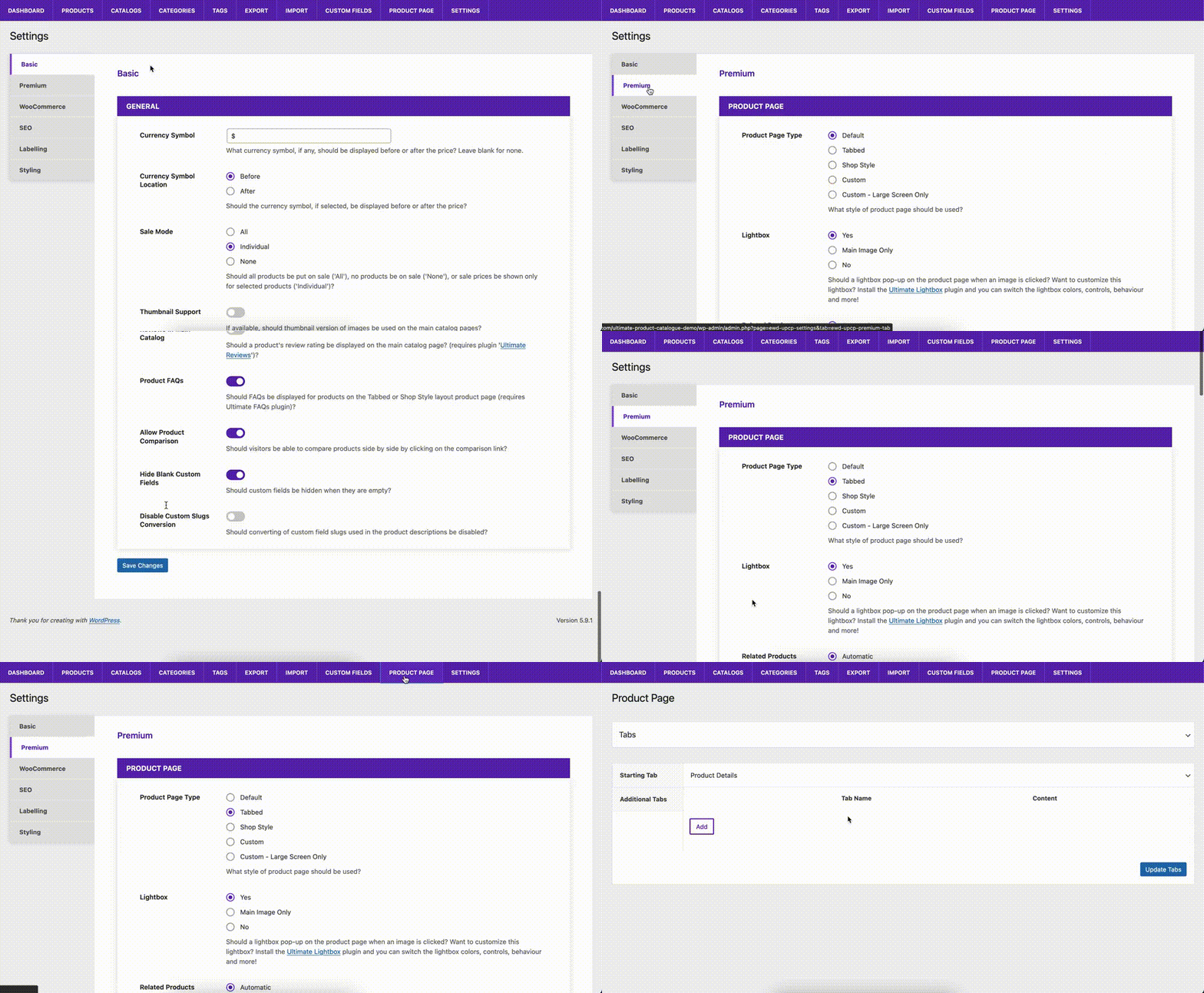
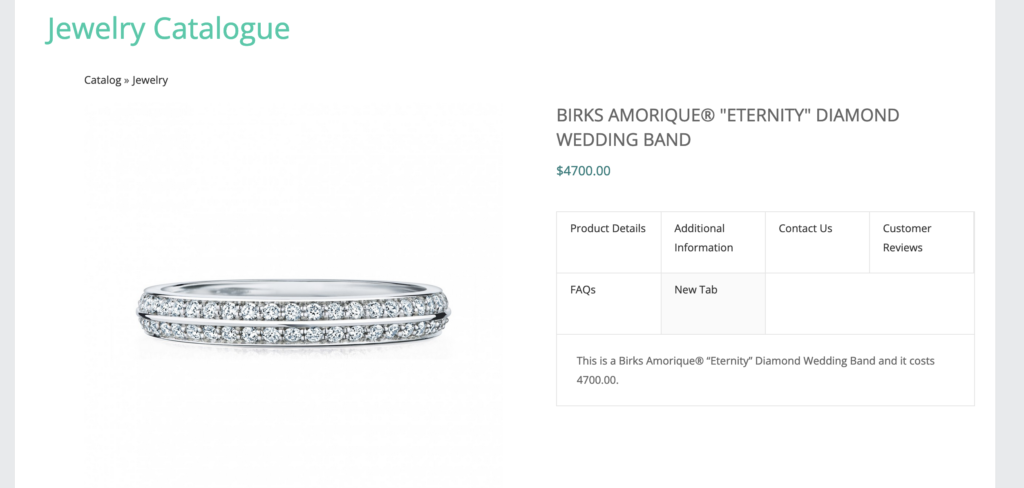
The most important feature is the ability to add tabs that are customized for the product being viewed. Click the “Add” button to create a new tab that will be displayed for each product. You can add text that will be the same for each product, or use tags that will be converted to their unique values for each product. For example, you can type in “This is a [product-name] and it costs [upcp-price].” The name and the price for each product will replace the tags within that tab.
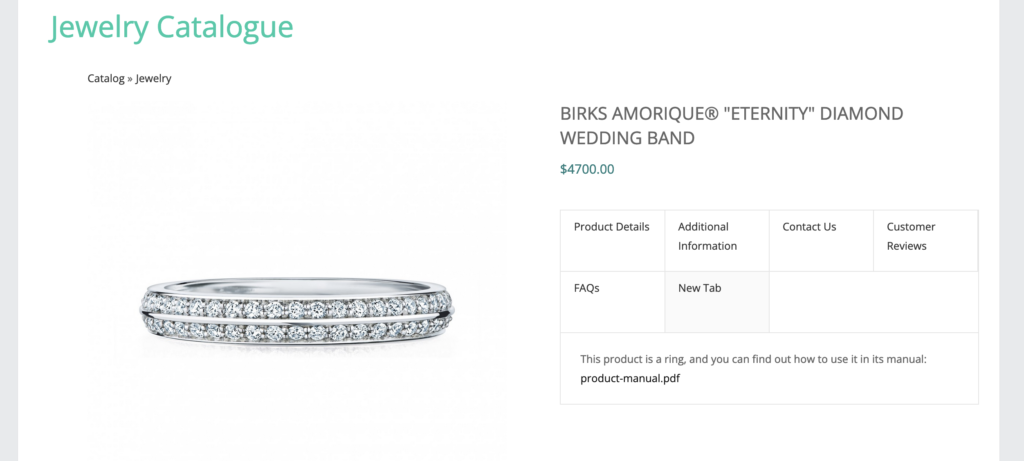
You can also use custom field slugs as tags, to output content like product manuals within the custom tab. We have fields created called “Product Type” and “Product Manual”, with slugs of “product-type” and “product-manual”. You can enter the following content into the custom tab, and it will be unique for each product: “This product is a [product-type], and you can find out how to use it in its manual: [product-manual]”.
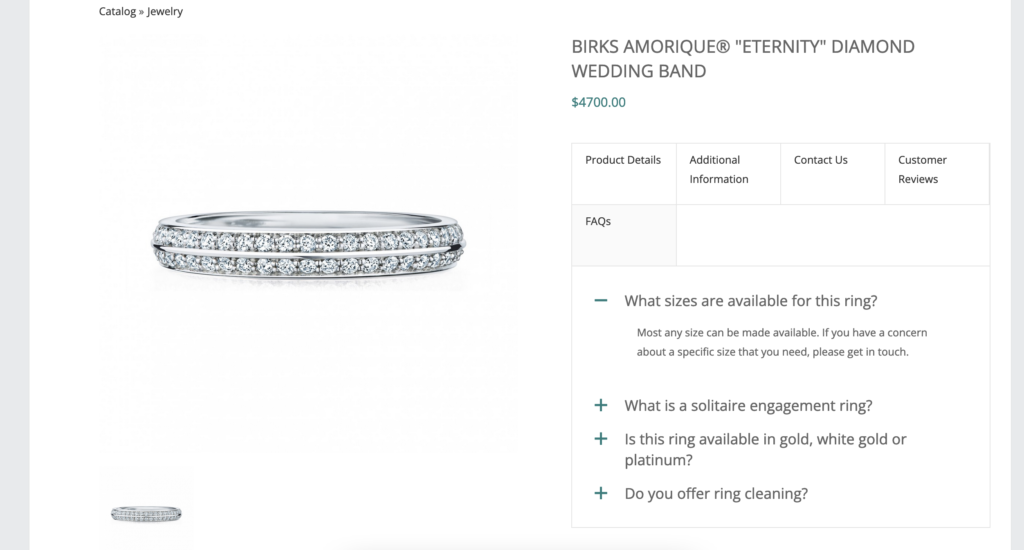
Finally, the most powerful way to customize the tabs is to enter shortcodes that will create unique content for each product. For example, if you’re using our Ultimate FAQ WordPress plugin, you can add in FAQs related to this specific product. There are a couple of ways to do that. First, you could create a custom field, “Product FAQ IDs”, where you list the IDs for all of the FAQs you’d like to display related to this product. You’d display those using tab content that looks something like [ ultimate-faqs post__in='[product-faq-ids]’ ] (without the spaces after the opening bracket and before the closing bracket, which are just here to prevent the shortcode from rendering). Alternatively, you could create a new FAQ category with the same name as the product, and assign FAQs you’d like to display for a particular product to that category. The content for the tab in that case would look something like [ ultimate-faqs include_category='[product-name]’ ].
There are a tonne of other useful ways to use custom fields within the plugin, and we’ll look at another great way to do that when we cover product filtering using custom fields in next week’s post!